

Documentation Index
Fetch the complete documentation index at: https://hc.starbridge.ai/llms.txt
Use this file to discover all available pages before exploring further.
Overview
The RFPs tab is where you will discover RFPs and initiate the process of drafting a response.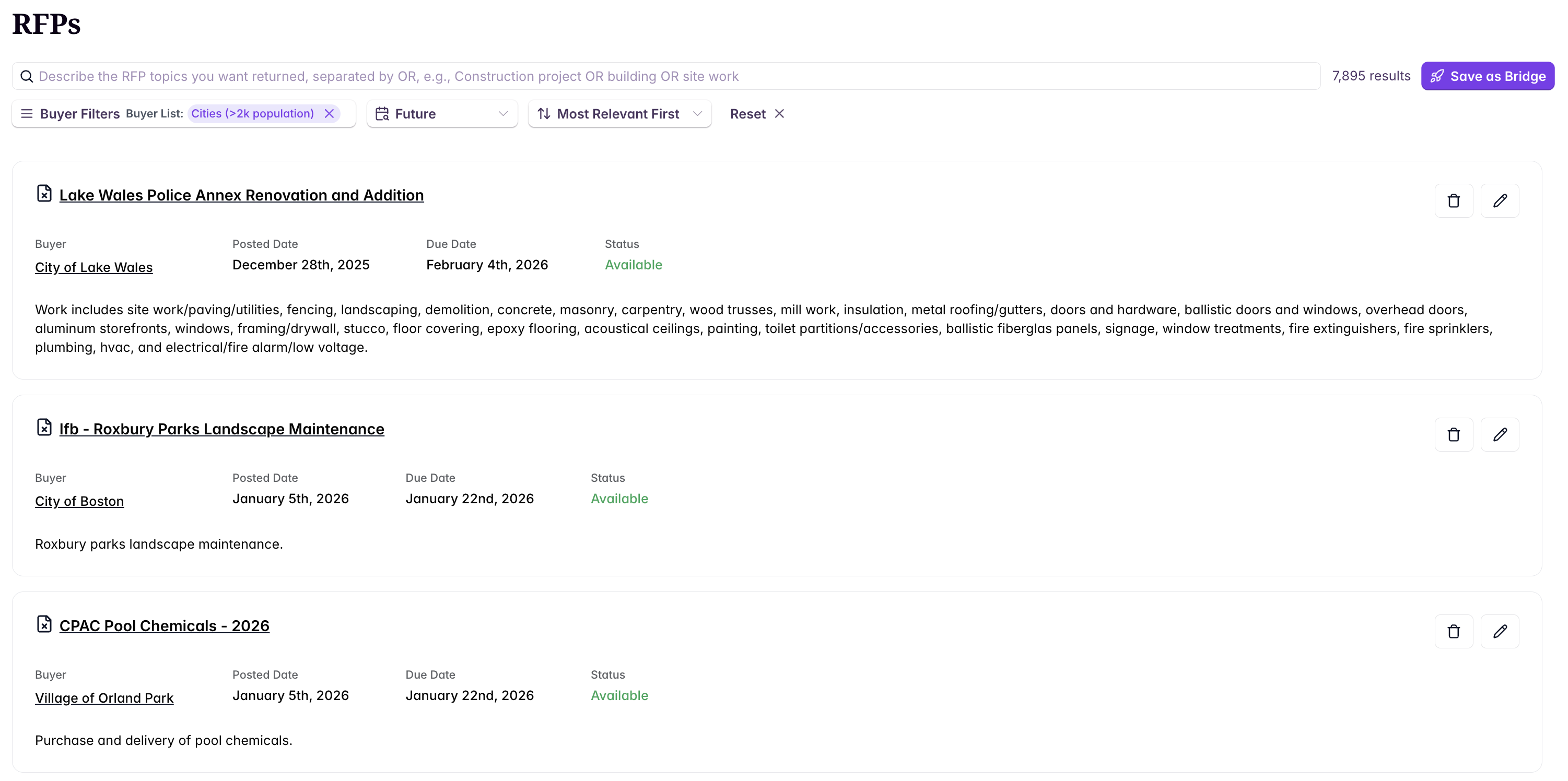
Search
When entering your search, there are some recommended best practices:Write your search criteria using OR statements
List your search criteria separated by
or statements, i.e. ERP software or procurement softwareSave your search as a Bridge
Once you’re satisfied with your criteria, you can create a Bridge: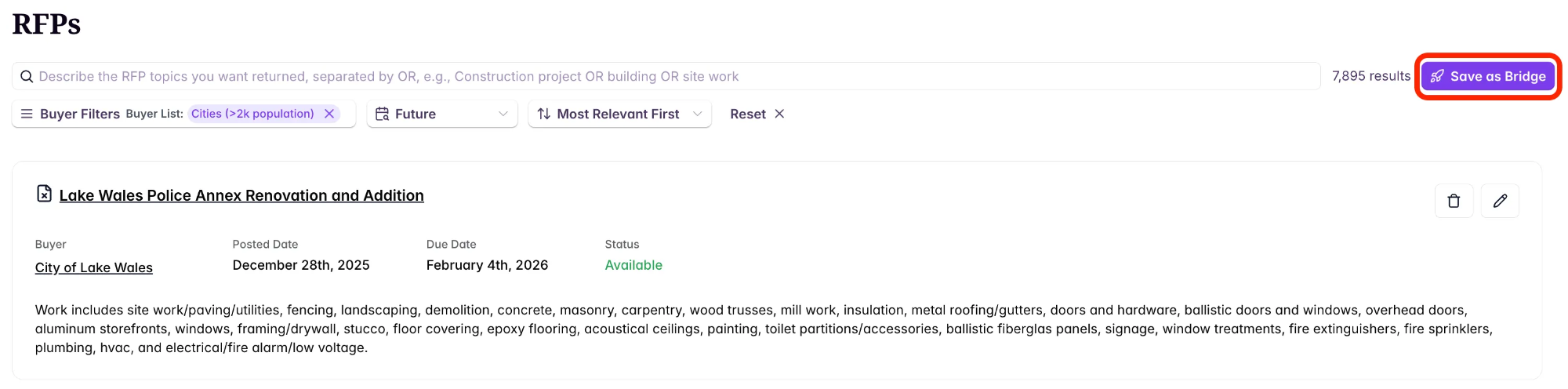
Example use case
Find and respond to an RFP (use case)
Walkthrough of the end-to-end flow from discovery to response drafting.