Only builders and admins can create bridges. See user roles for more information.

Overview

Bridges are the primary unit of execution in the Starbridge application. See here for more of a business overview: What is a Bridge?
There are two views to create bridges: we recommend using the RFP’s, Meetings, Purchases, & Conferences tabs on the lefthand side of the screen for those elements, and the “Bridges” tab to create Contacts, Buyers (Account Scoring/CRM Enrichment), Job Changes & Custom Web Signal Bridges.

Creating a Bridge

There are two main ways to create a bridge within Starbridge:
Image
The recommended flow for creating a bridge is through the Signal sidebar, as it allows you to play around with your search query and filters, look at what signals will be pulled into your bridge, and optimize before creating the bridge itself.This is the recommended building point for RFPs, Meetings, Purchases, and Conferences.

Entry Point 1 Deepdive: Creating a Bridge through Sidebar Items

The benefit of creating a Bridge through Sidebar Items is that signals will surface prior to the bridge being saved. From the RFPs, Meetings, Purchases and Conferences pages, once you’ve refined your keyword search, applied the right filters, and feel confident in the signals you’ve surfaced—you’re ready to take action. That’s where the Save as Bridge button comes in.
Save as Bridge button on a search results page
Clicking Save as Bridge allows you to instantly bundle your entire search configuration—including:
  • Your keyword query
  • Any applied filters (e.g., date range, meeting type)
  • Your Buyer List selected (automatically applied by default). This workflow kickstarts the Create New Bridge form, with all your selected criteria pre-populated so you can go straight into naming the Bridge, assigning ownership, and configuring notifications. It’s the fastest way to turn exploratory research into a repeatable, trackable, and shareable workflow. Once created, your Bridge will live alongside all others in your org’s Bridges view, where you (and others) can monitor leads, subscribe to updates, and drive forward with execution.
Create New Bridge form with pre-populated criteria
When creating a Bridge, you will automatically be subscribed to receive notifications for that Bridge.

Entry Point 2 Deepdive: Through the Bridge Home Page

When clicking “Create Bridge” from the Bridges landing page, you’ll now be prompted to choose from either Featured Use Cases or Custom Bridges: Featured Use Cases provide a list of commonly used bridges across the below use case categories:
Image
The benefit of using this feature is that the bridge will be streamlined to a specific purpose. The Bridge will come with Pro Tips and a How to Video explaining how to create a Bridge aligned to the specific Featured Use Case.

Custom Bridges

Custom Bridges can be created based on your use case or signal source. We recommend creating the following bridges via this view:
  • Buyer Bridge – Build static lists of Buyers (used for targeting or segmenting)
  • Contacts Bridge – Build a list of relevant Contacts for specified Buyers
  • Job Changes - Build a list of Job Changes (New Joiners, Title Changes, Departures) for specified Buyers
  • Custom Web Signals Bridge – Monitor a specific inquiry or request across the web
Image

Selecting a Buyer List

Adding a Bridge Description

Bridge descriptions clarify the purpose of a Bridge and how it should be used. Adding a description makes it easier for you and your team to understand what a Bridge is tracking when viewing it later. Create a new Bridge and navigate to the Edit Bridge view Or open an existing Bridge and select “Add description”
Add description option in the Edit Bridge view

Best practices for Bridge descriptions

  • Keep descriptions concise
  • Be specific about what the Bridge tracks
  • Use descriptions to differentiate similar Bridges (if relevant)

Enhancing a Bridge with Add Column

Adding Columns

Bridges start as a list of items that have matched a search. Adding columns enables you to enrich that base search with more information. The following outlines some tips on how to use add columns.
Each Bridge Type includes default columns that are essential for enriching signals (RFPs, Meetings, Purchases, etc) and display info in related card views. These columns cannot be removed, as they are designed to provide the most relevant and valuable information for that Bridge Type.

Use AI to Figure Out What Column to Use (Beta)

Use AI to Generate Column Template option uses our AI to figure out what type of column you might want to select. This is done by adding a short statement to the prompt field along with any additional response examples you may have (for example the structure to an email). Depending on what your desired output is, you will be placed into the correct column type. Some example use-cases include:
  • When is the due date of this RFP?
    • The Use AI column would pull out the Due Date attribute for the RFP and put it into its own column.
  • Does the buyer anticipate funding shortages in the next year based on this meeting?
    • The Use AI column would pre-populate an AI Analysis column with a prompt to search the meeting signal for mentions of anticipated funding shortages in the next year.
  • Does this buyer have any public mentions of challenges with AI?

Column Types

Bridge Specific Columns

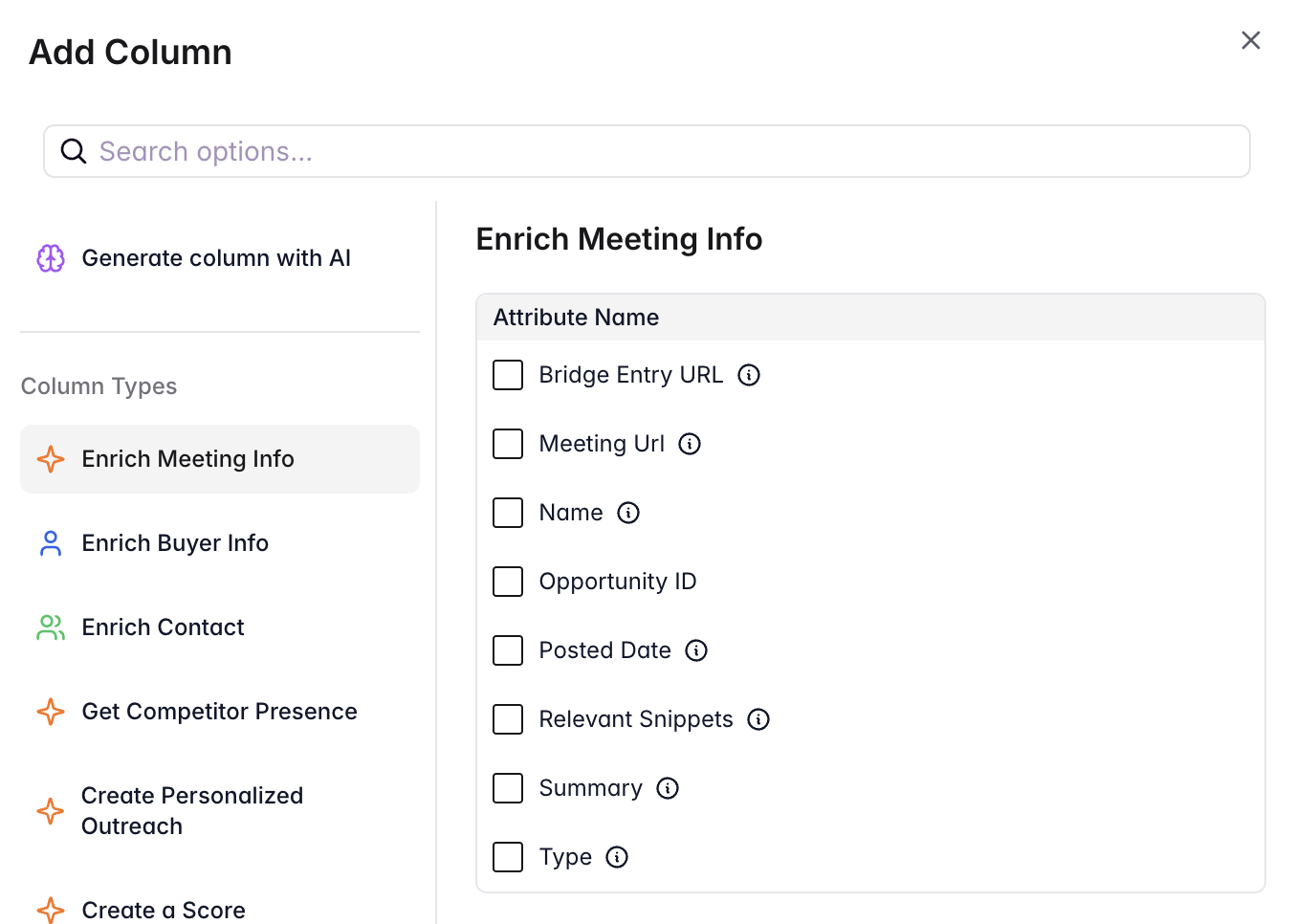
Bridge Specific Columns allow you to reference structured and standardized data that is specific to the Bridge Signal itself. See below for example attributes. You are able to select more than a single attribute at once, and each one will be displayed in its own column. These can be useful when used as inputs into AI-based prompts or for you to visually identify rows of interest. Meetings Bridge Specific Columns
Meetings bridge specific columns selector
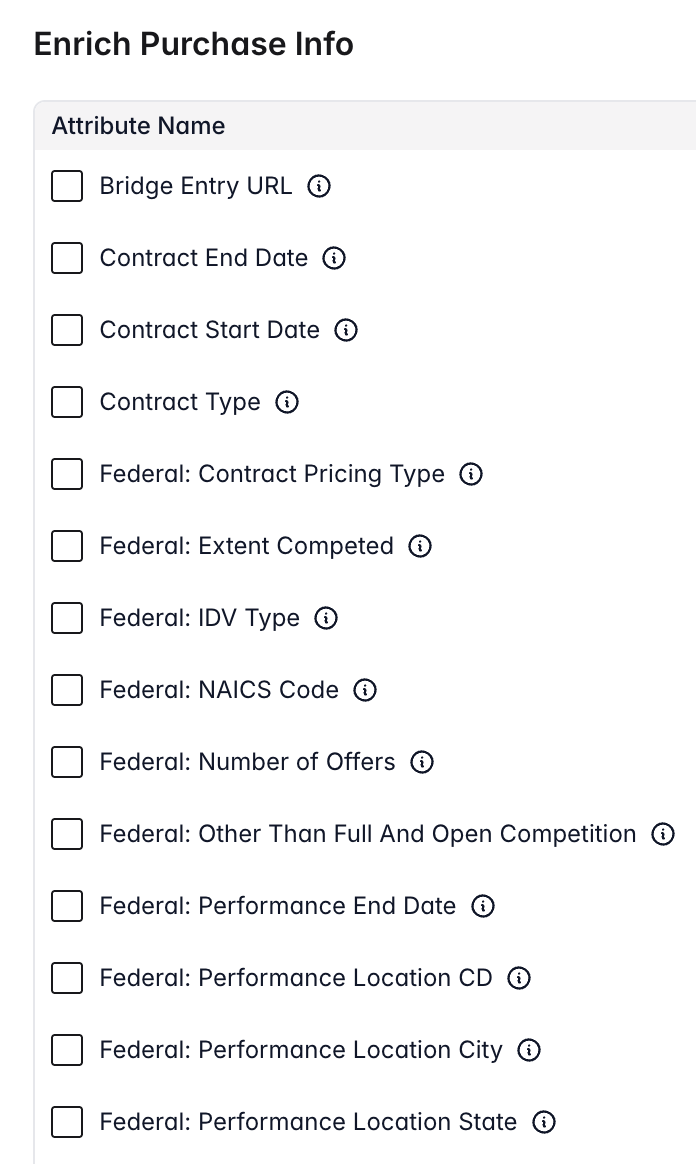
Most of these meetings bridge specific columns are simple text fields. Relevant Snippets is a special column type that extracts relevant quotes from the meeting document or transcript. Starbridge determines whether a quote is relevant by comparing it to your bridge description, search query, and organization context. When you or a consumer click the Relevant Snippets in the bridge results, email digest, or feed, you will see the relevant snippet and the video, audio, or text document at the timestamp or page where the relevant snippet can be found. RFP Bridge and Purchase Bridge Specific Columns
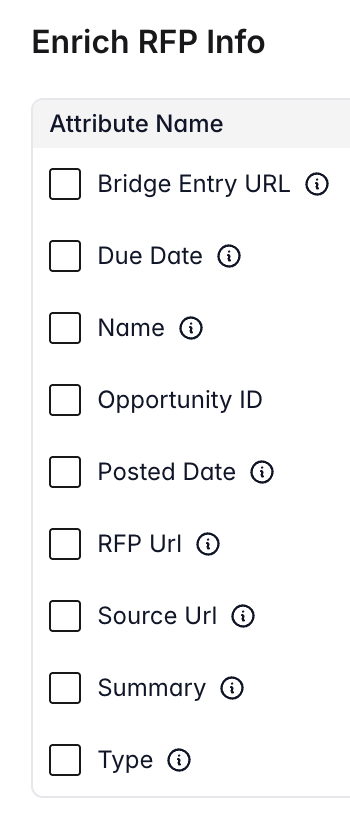
RFP bridge specific columns selector
Purchase bridge specific columns selector

Buyer Attributes Columns

Buyer Attribute Columns allow you to reference structured and standardized attributes that are specific to the Buyer itself (and free + collected by Starbridge).
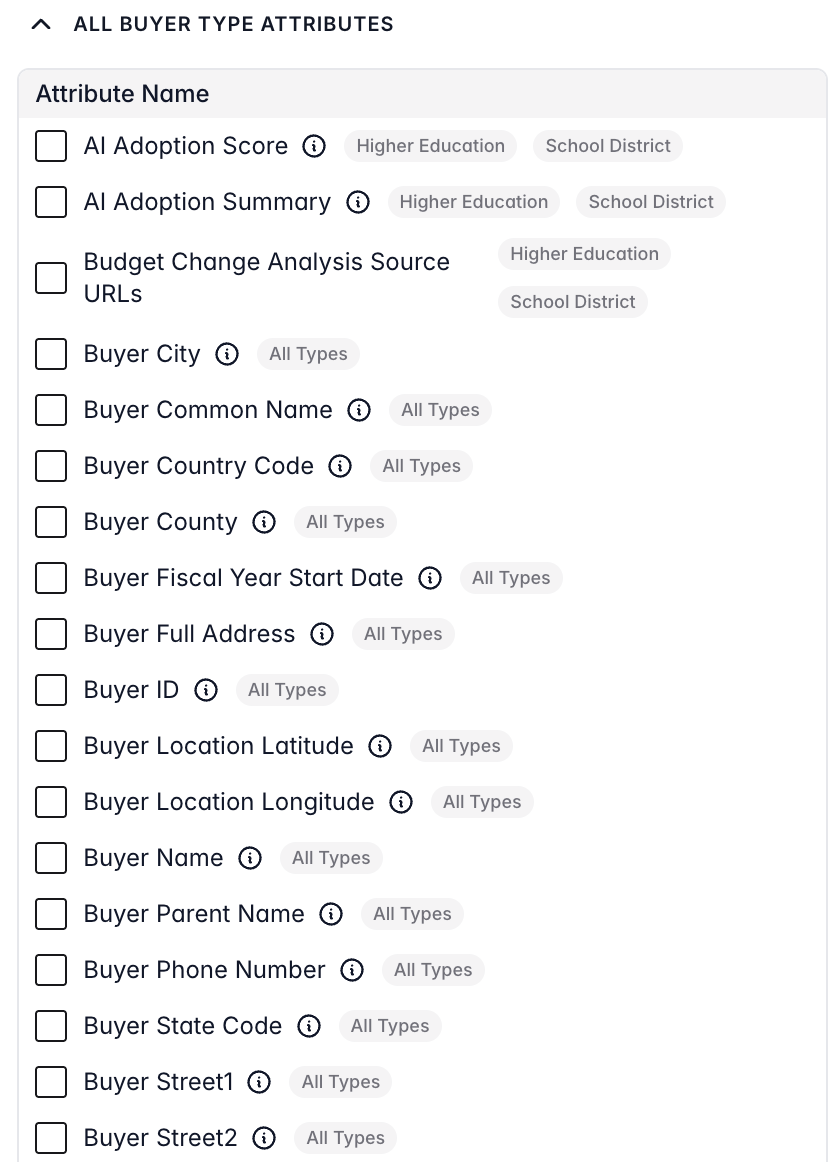
Buyer attribute column picker
You are able to select more than a single attribute at once, and each one will be displayed in its own column. These can be useful when used as inputs into AI-based prompts or for you to visually identify rows of interest. Buyer attributes and enrichments are kept up to data automatically by Starbridge. For example, if a University’s enrollment changes and you have an enrollment column that syncs to your CRM, when Starbridge’s data team updates the enrollment of each institution, it will then update in your bridge and automatically sync to your CRM without intervention. For a list of all buyer attributes see here: All Buyer Data.

Contact Column

The contact column is useful for adding a few individual contact titles to a given bridge. For example, when you find a relevant meeting mention, find the individual in charge of that initiative to outbound them. If your goal is to do deep enrichment across all contacts in your crm, we recommend creating a contact bridge rather than using a column Enriching Contacts: Contact Bridges
There are three types of contacts that can be added as a column to a Bridge.
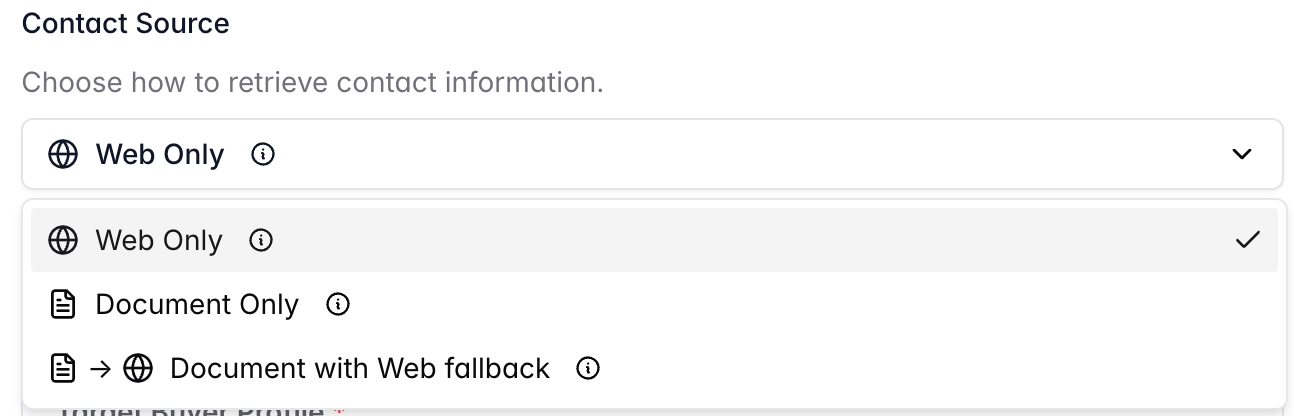
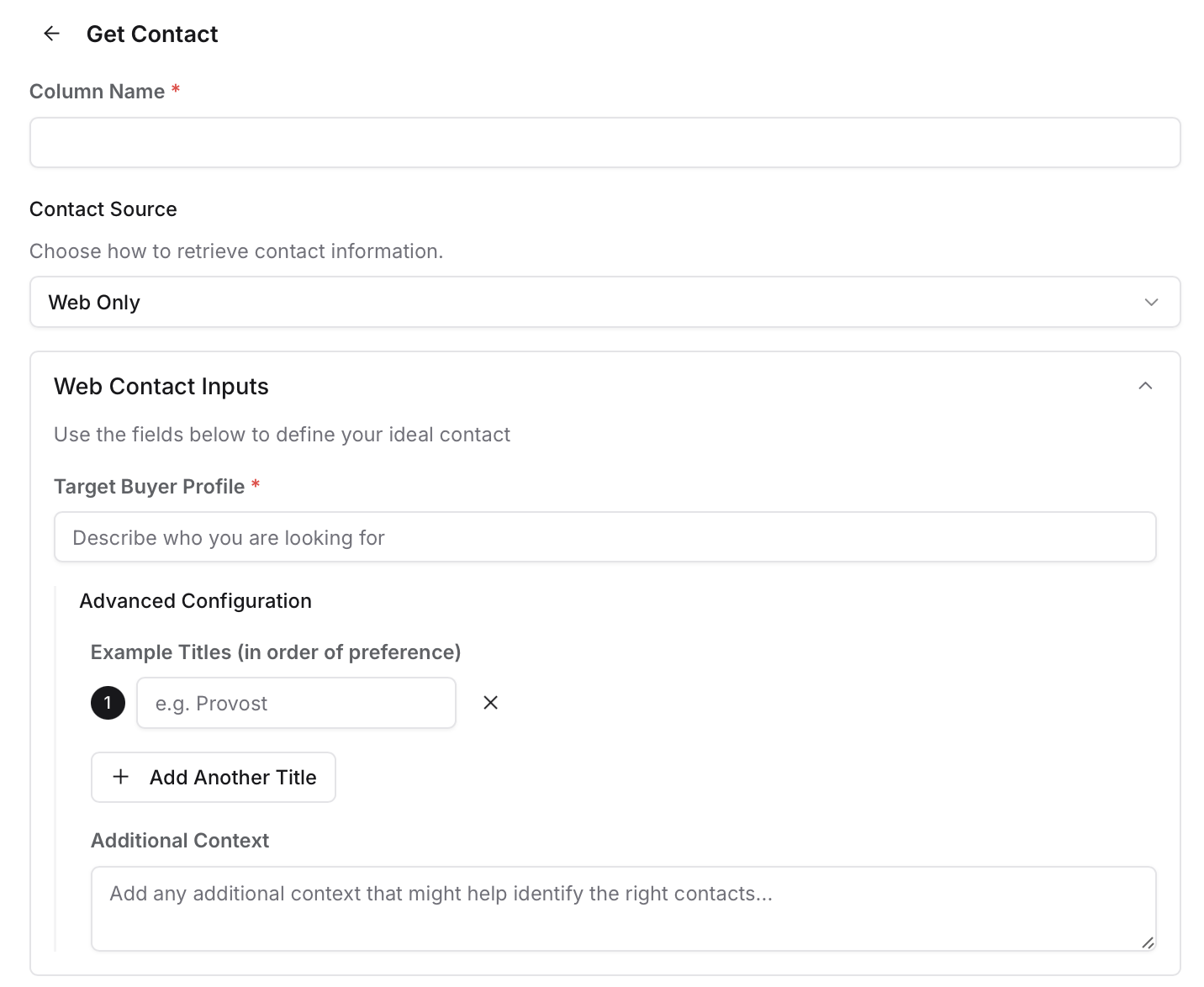
Contact column type selector
The first type is document based contacts. This option is only available for Meetings bridges and brings in the contact actually having the conversation in your Search. The second type is web based contacts. This option is available for all bridges. Web-based contacts give you the ability to describe the type of individual you are interested in finding contact information for. This may be useful if you know that your target contacts use different titles across different institutions or if the titles differ by State, or if you simply don’t know what the exact correct title is. You would describe the responsibilities of your target contact and then provide some examples or additional context that you think would be beneficial for Starbridge to know. Our AI will then check the Buyer’s website, any directories, any contact mentions across news articles, etc. to identify the best contact information.
Web-based contact prompt example
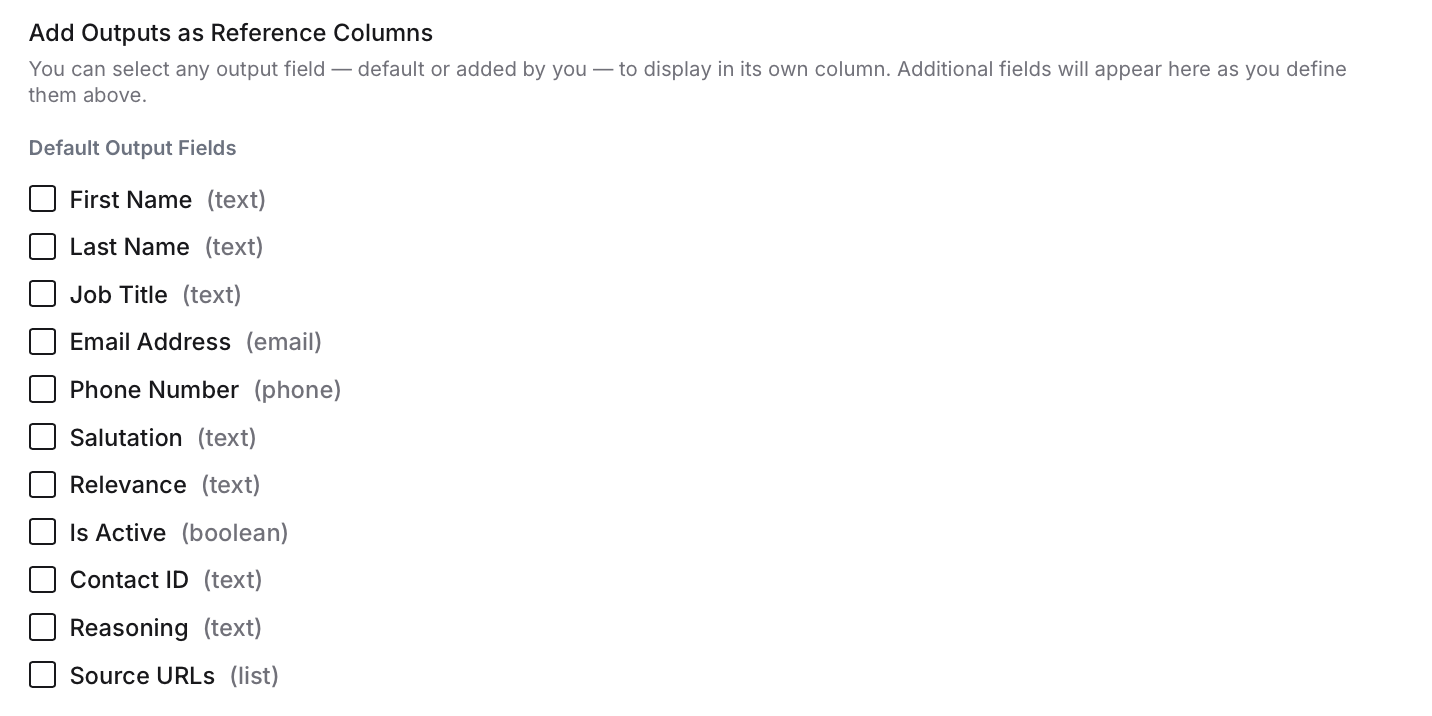
The goal of web-based contacts is to identify the individual who you want to speak with. While knowing who was leading the conversation you are interested in is valuable, that individual is not always the decision maker who determines whether or not to purchase your product. The third type is document based contacts with a web-fallback. This will return the contact identified in the Meeting, but we will run a web-based search to bring in any information not found in the Meeting. Just like document based contacts, document based contacts with a web-fallback is specific to Meeting bridges. For all contact types, you have the ability to display a specific field of the Contact Column in its own column if desired as a reference.
Contact column field selection
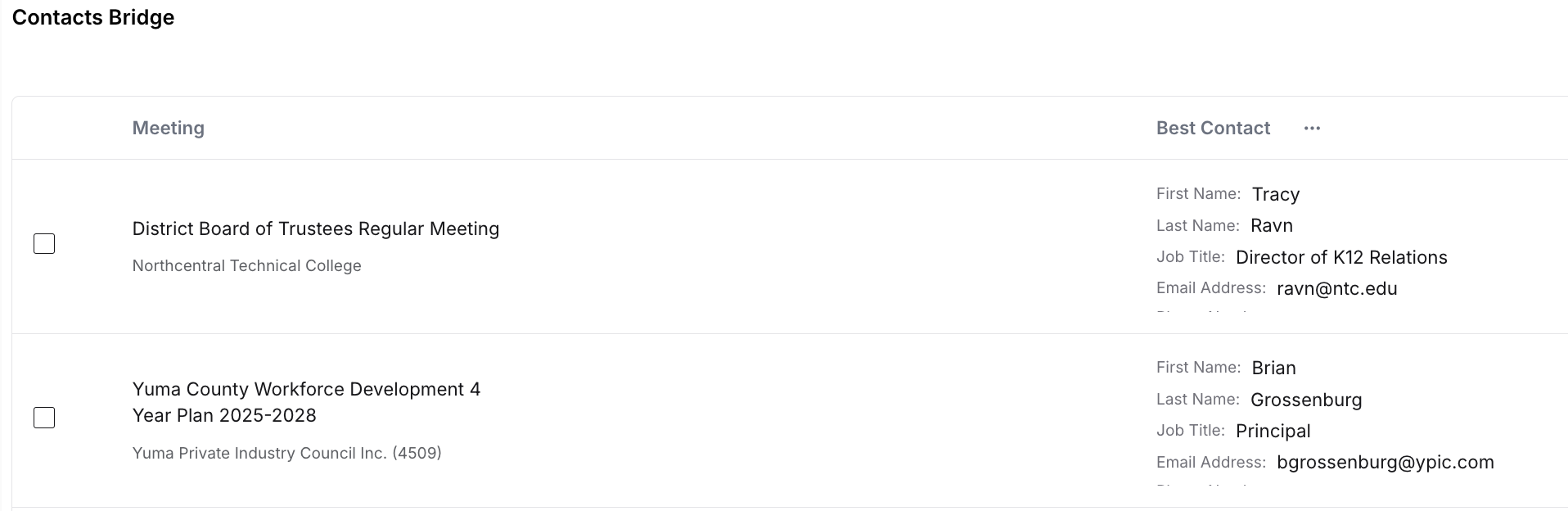
Once the Contact Column returns its results, they will be displayed in a neat and formatted fashion.
Contact column results displayed in the bridge table
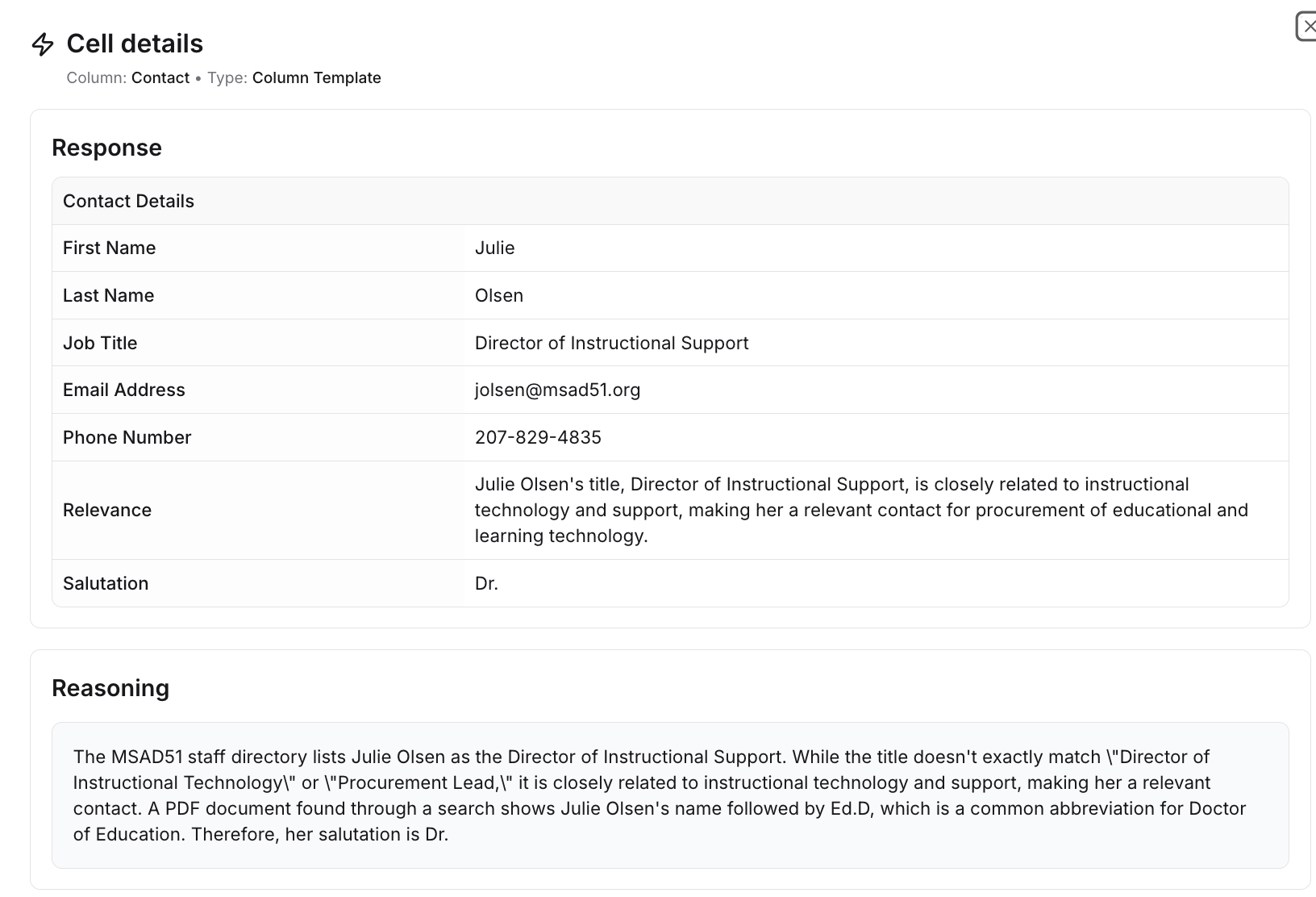
Clicking into each contact cell will give you a better sense of all of the contact information and the associated relevance/logic for why that particular contact was selected.
Contact detail view showing verification and rationale

Summarized Relevance Columns

Summarized columns generate a summary of the signal and why it is relevant for you and your organization.
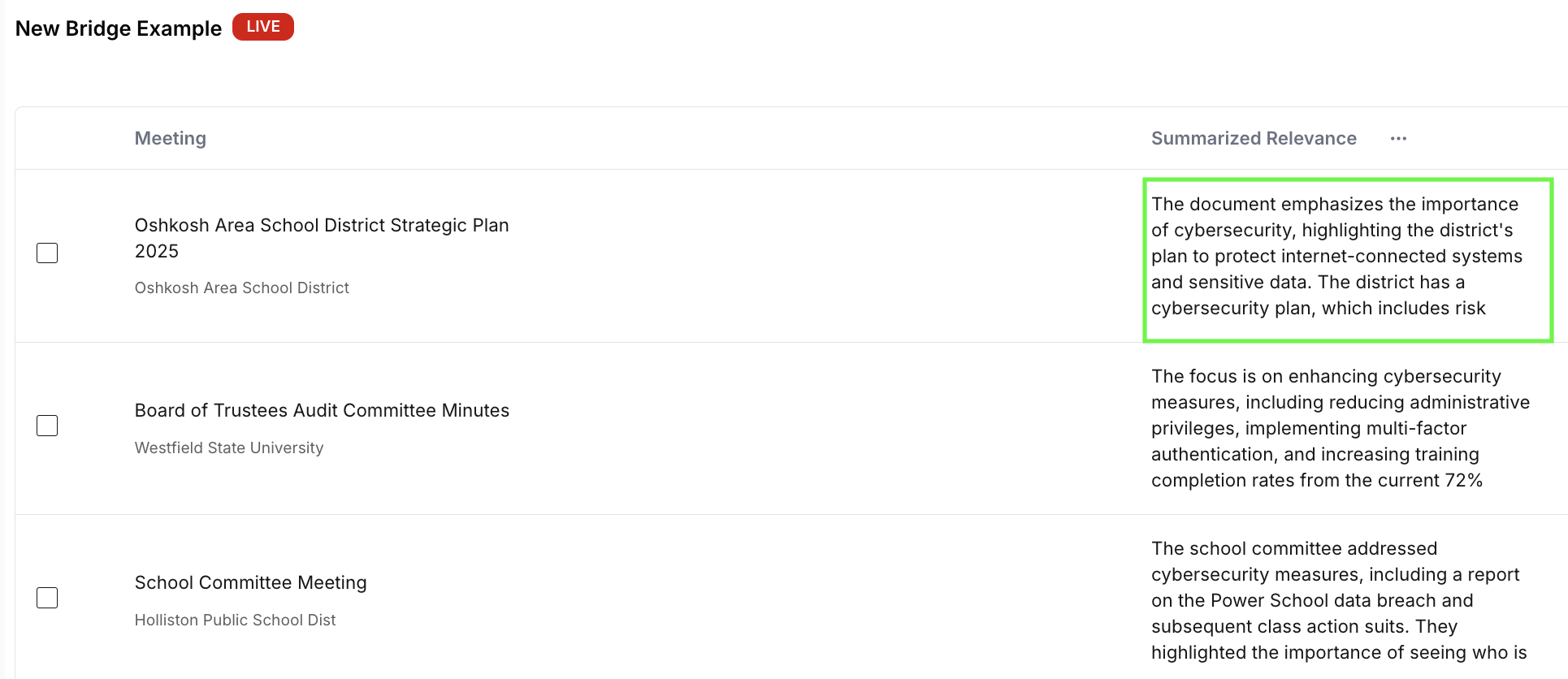
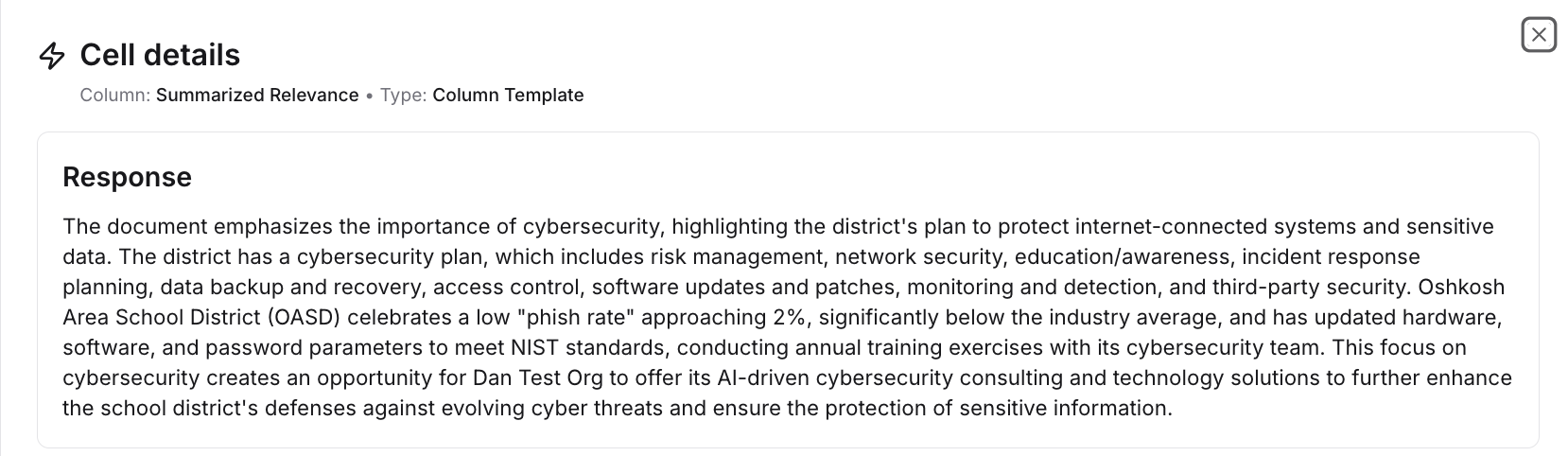
Summarized relevance column example (table view)
Summarized relevance column example (expanded view)

AI Analysis Column

The most popular use cases for AI analysis are to analyze items: IE: create a call script for a meeting discussion, create a score (score this set of accounts based on a set of criteria), generate a personalized email or summarize a set of items. The AI Analysis column type allows you to use natural language to describe what you are interested in learning about. AI can enrich the information that exists within the platform, allowing you to conduct analysis in bulk, quickly and effectively. While our web agents (see below) leverage the internet and web-based search, the AI analysis tool uses the context of the Meeting/RFP/Purchase and any other information in the table to instantaneously conduct analysis. Input Example:
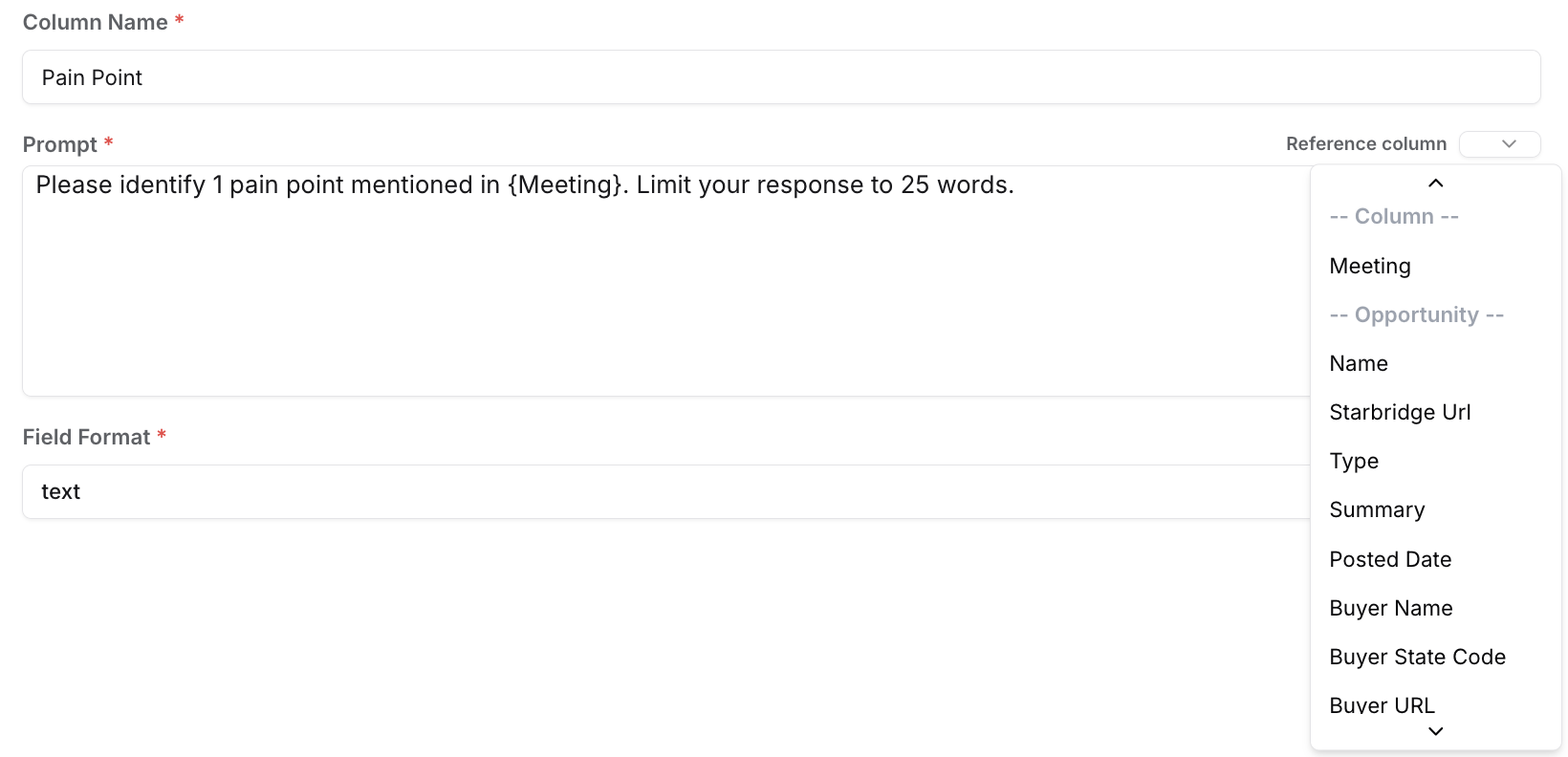
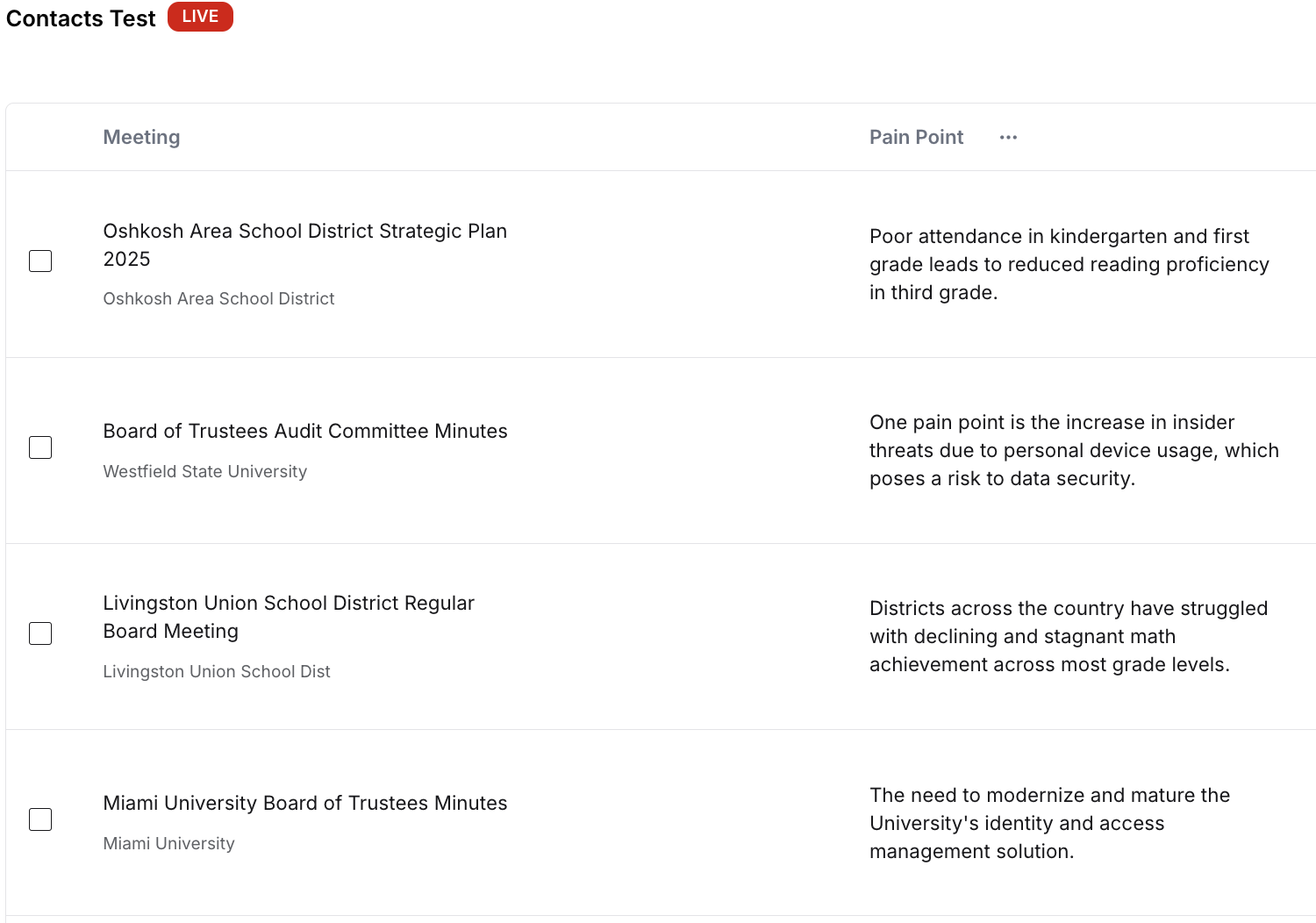
AI analysis column input example
Output Example:
AI analysis column output example
You are able to reference other columns from your Bridge in your AI analysis. As with any AI-based prompting system, the more specific you are the better. Adding validation criteria (word limits, tone, etc.) and being highly specific in requesting the information you want to receive will help improve and refine the output from the AI analysis.

Web Agent Column

The web agent column is very similar to the AI Analysis column, however the web-agent searches for the information on the internet. It is not limited to the confines of the Starbridge platform, meaning it is able to identify pertinent and meaningful information with an almost unlimited scope. Customers use this analysis tool when they want to get supplementary information that cannot simply be found within the documents Starbridge has identified. Input Example:
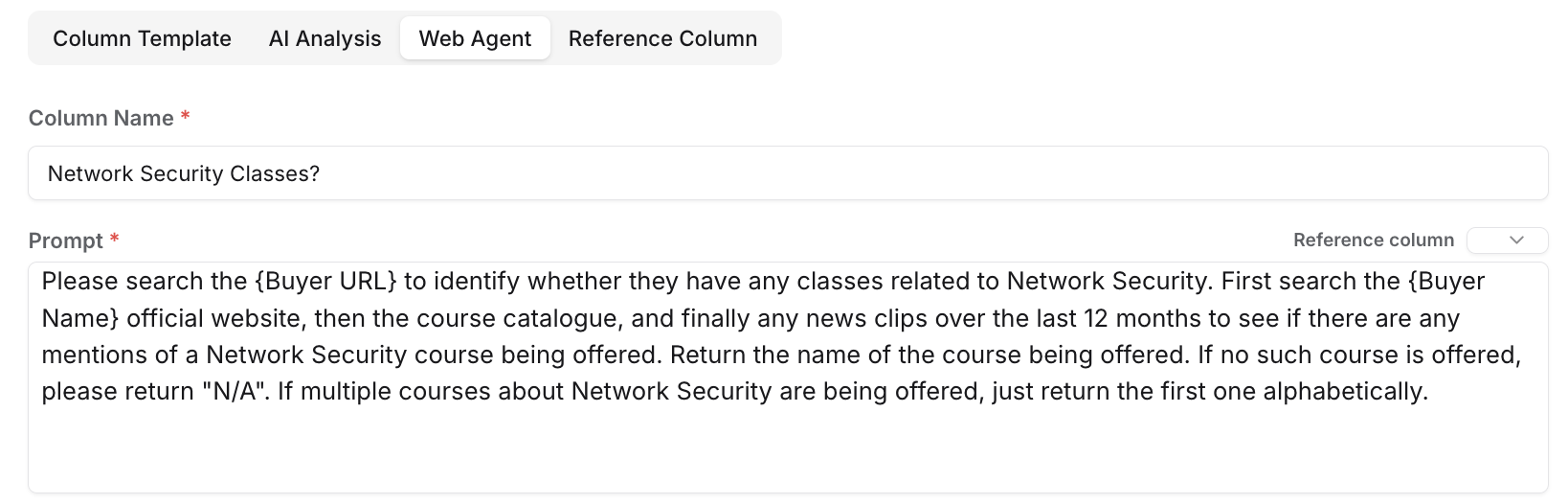

Web agent column input example
Output Example:
Web agent column output example
As with any AI-based prompting system, the more specific you are the better. Adding validation criteria (word limits, tone, etc.) and being highly specific in requesting the information you want to receive will help improve and refine the output from the web agent.

Integration Column

Integration Columns allow you to sync specific columns from Starbridge to your CRM and reference specific data fields from your CRM in Starbridge. Visit the Syncing to Your CRM (SFDC or Hubspot) page to learn more.

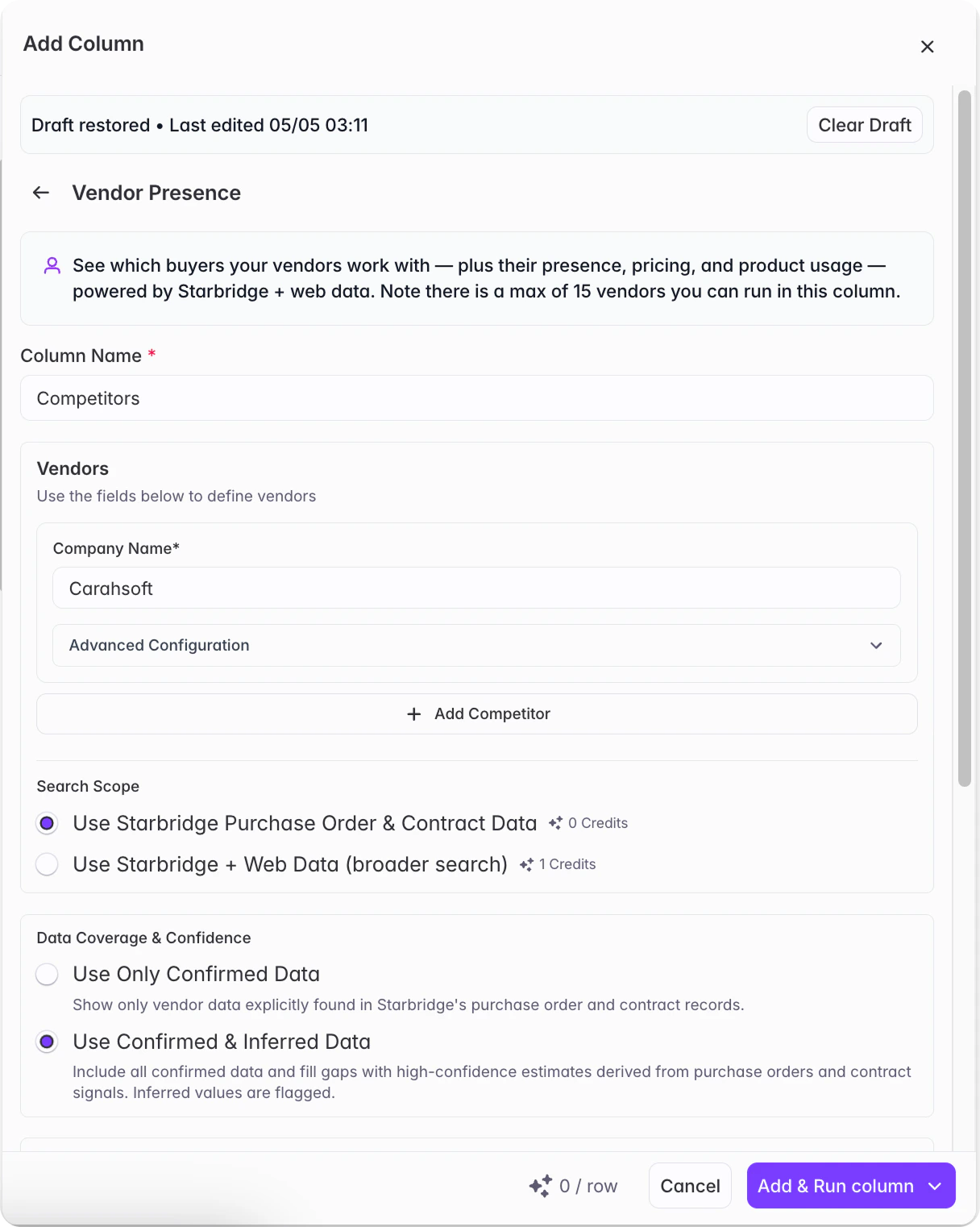
Competitor Presence Column

If you want to know about whether a given account has a relationship with a set of competitors, the competitor presence column is the best approach. The competitor presence column looks across our internal purchase orders, contracts, meeting minutes and web (optional) to determine whether there is evidence that a given buyer works with a competitor. Input the competitors and/or products you are interested in tracking: and we will output whether that buyer works with that competitor, any pricing detail and an explanation of the relationship. You can either run the competitor presence column to only look at our internal dataset or you can expand it to use web for credits (and see more results).
Competitor presence column configuration

Edit Column (And Extracting Child Entities)

Referencing an existing column gives you the ability to extract a single attribute from a column containing multiple output fields in order to export the data in a more formatted way. Contact Columns are a perfect example of a column that contains multiple output fields that you may want to separate into their own columns.
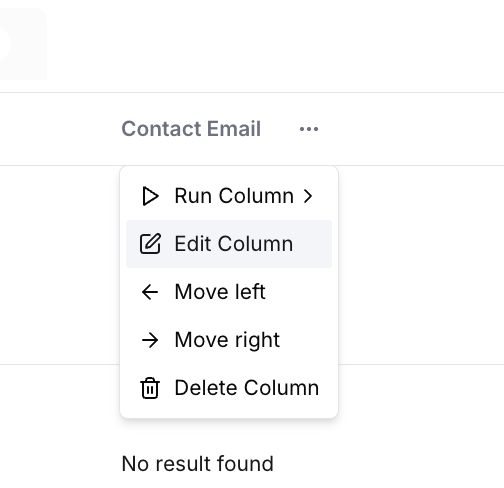
Edit column flow for extracting child entities/fields

Referencing Data from Another Bridge

Referencing an existing bridge within a column is a feature specific to a Buyer Bridge. The goal of this feature is to enhance your data and knowledge of a list of Buyers. Using this cross bridge reference allows you to identify where and when a particular Buyer has appeared in other Bridges. One prominent use case is in account scoring when you might want:
  • Do any of these buyers have RFPs matching specific search criteria currently posted that have not yet expired?
    • Reference an RFP Bridge
  • Have these buyers been posting meetings where they express buying intent or pain points?
    • Reference a Meetings Bridge
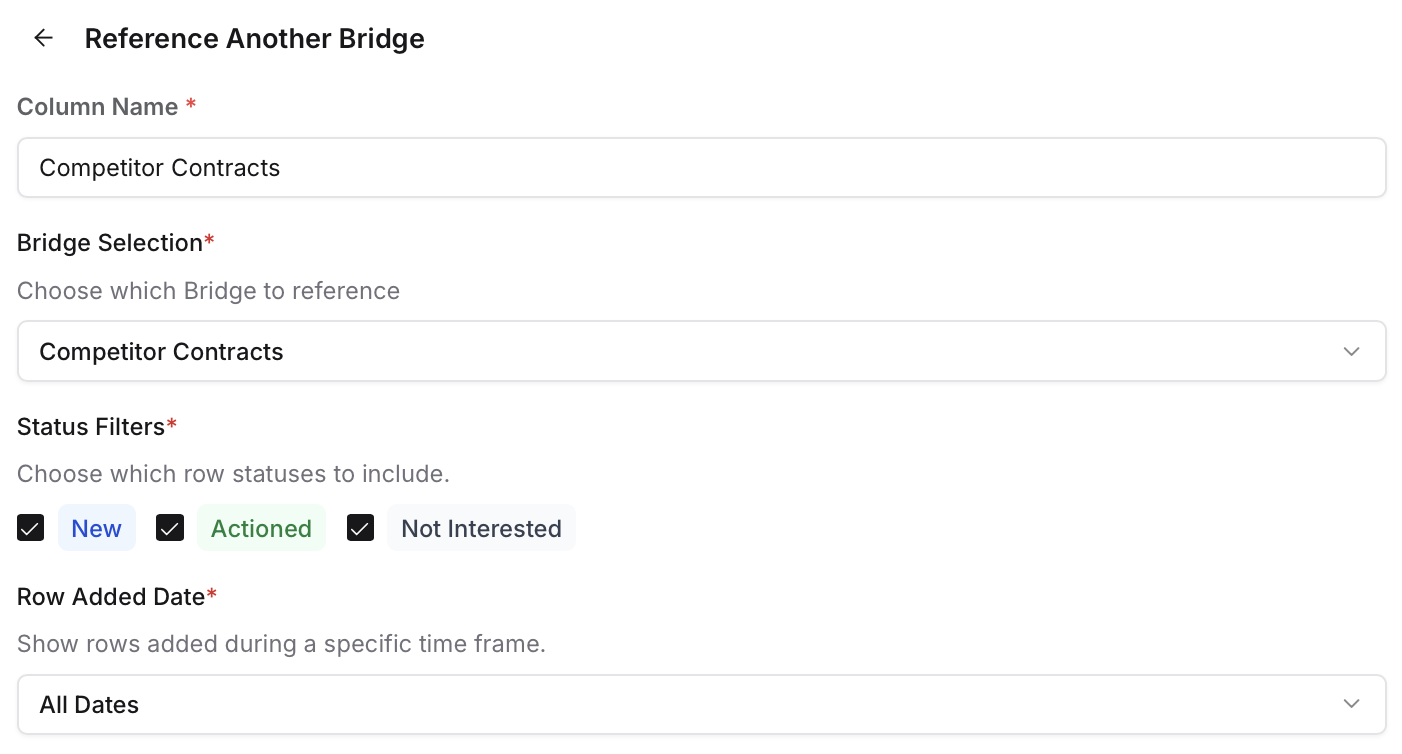
Reference bridge column configuration
When you add a reference bridge column, you will need to specify the following:
  1. Which Bridge you want to cross-reference
  2. Whether you want to reference new, actioned, not interested, or all mentions
  3. What time-frame for referenced items do you want to include Some example use-cases include:
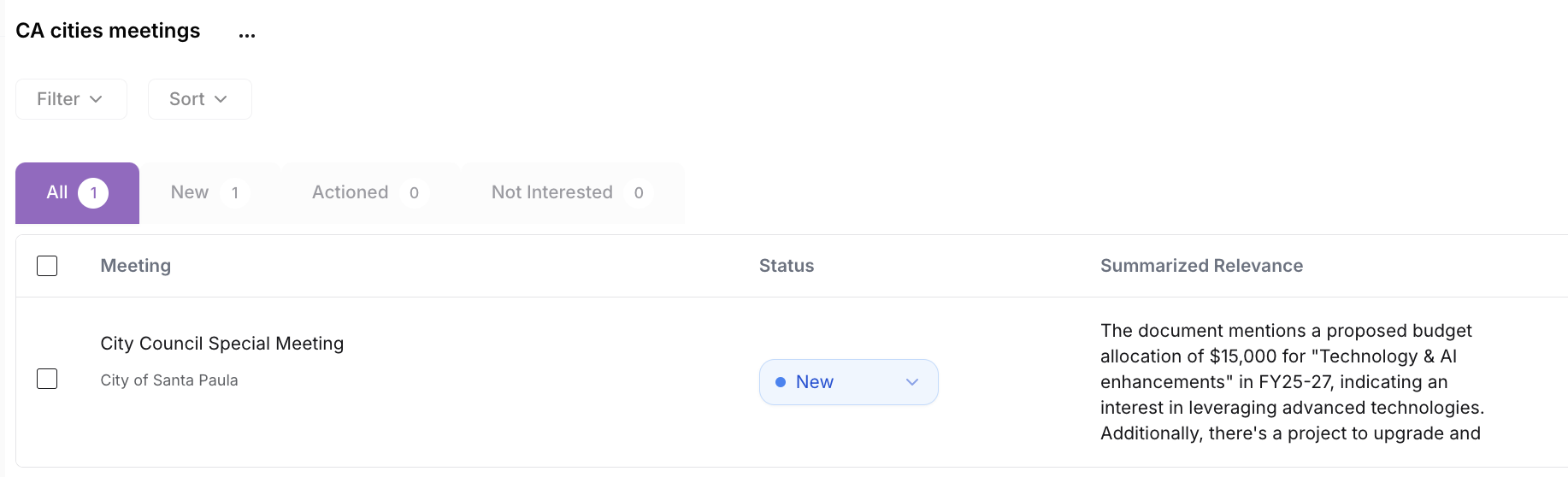
  4. For my list of target cities in California (Buyer Bridge), I want to see all relevant Meetings from my Bridge which identified pain points (Meetings Bridge, all statuses, all dates).
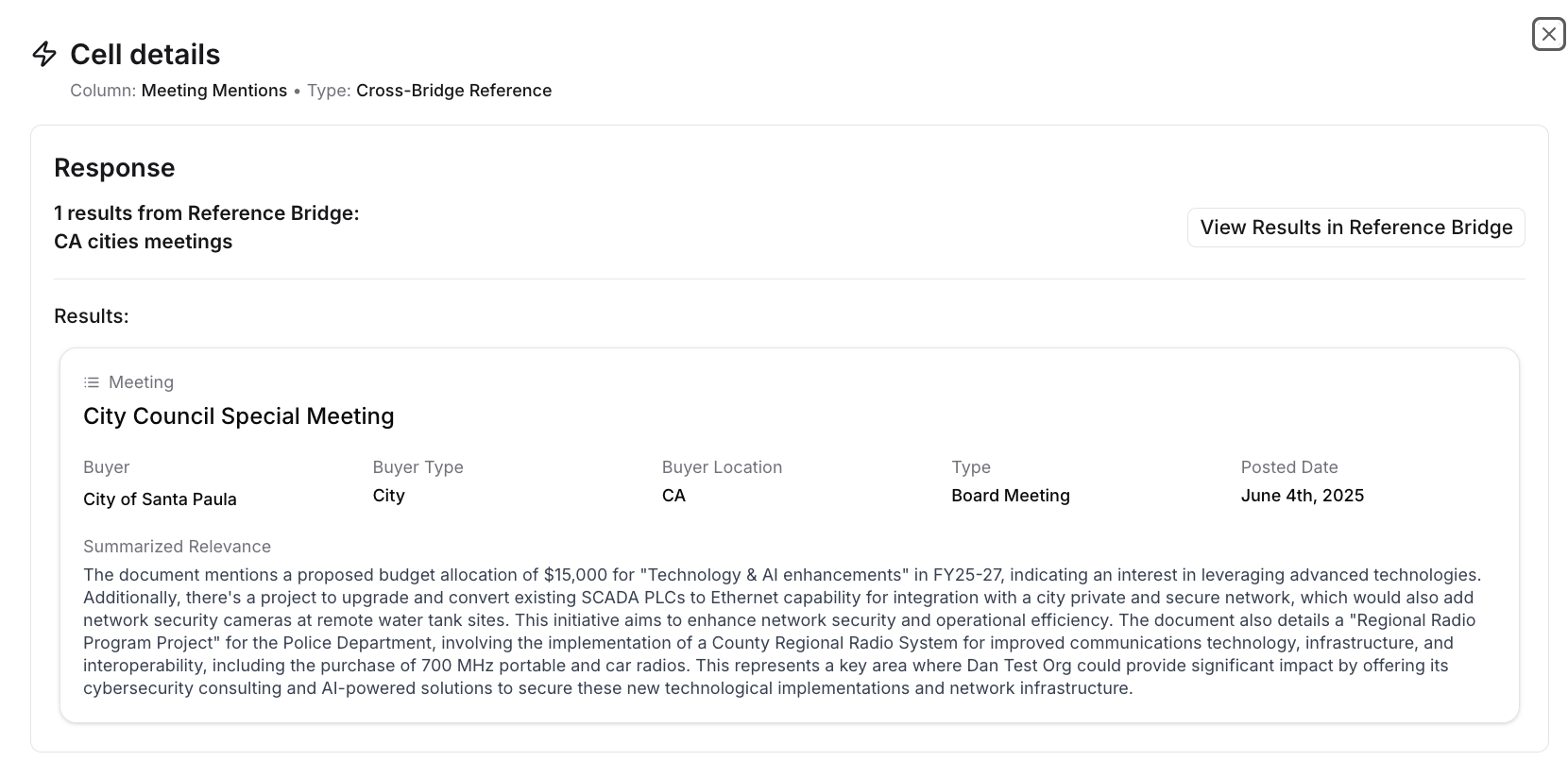
  5. For my list of target cities in California (Buyer Bridge), I want to see all actioned Purchases from my Bridge which identified contracts with competitors in the last 1 year (Purchases Bridge, actioned status, last year) The output of a existing bridge reference column is a column which identifies how many times (and where) a particular Buyer was referenced in your selected Bridge. In the example below, all the Buyers were not referenced in the selected Meetings Bridge, except for “City of Santa Paula”, which was referenced once:
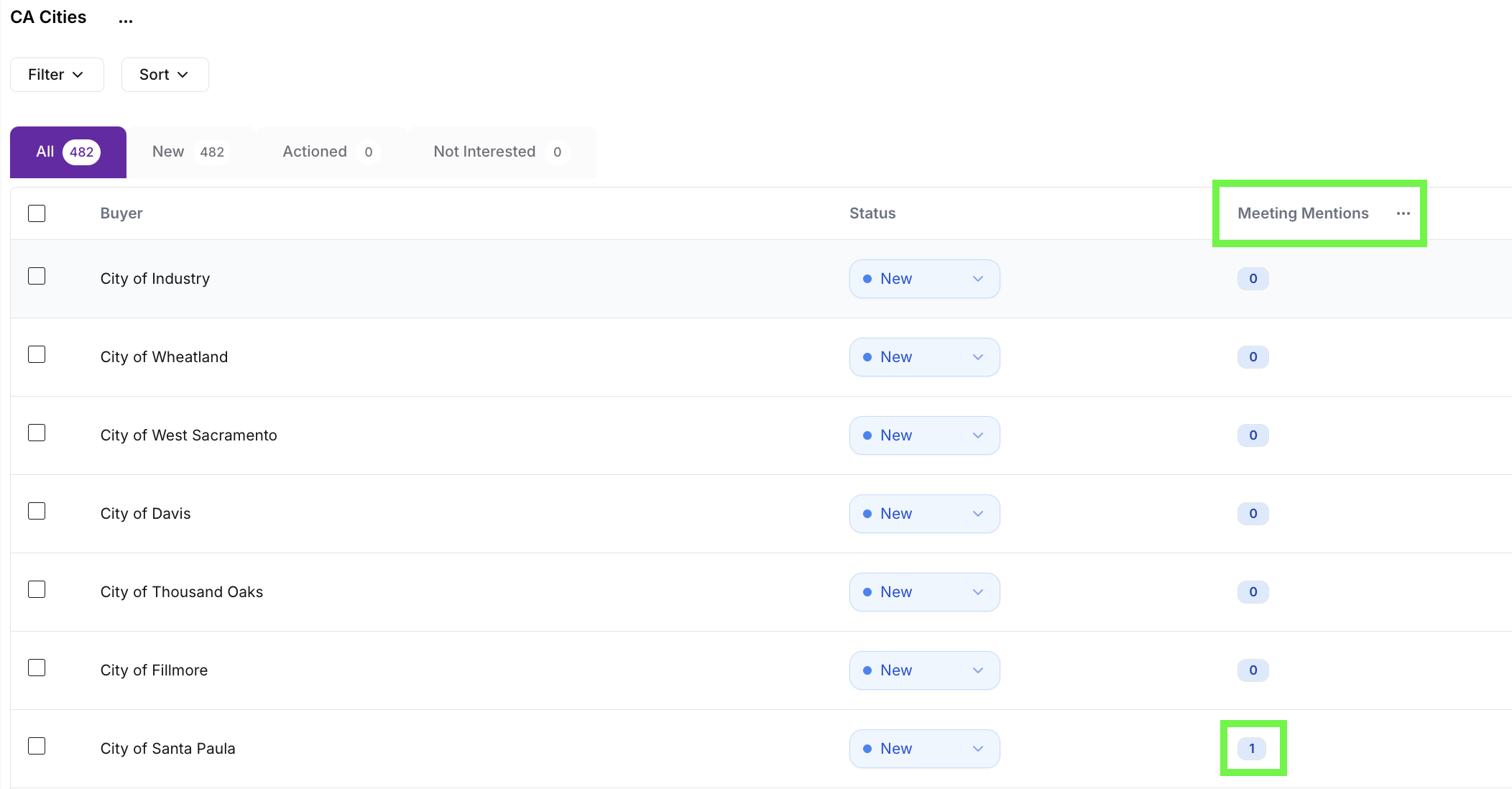
Reference bridge column output showing counts
Clicking into that “1” cell, you can see that City of Santa Paul appears 1 time in the selected reference Bridge. You can immediately view a summary of that meeting from the Buyer Bridge:
Expanded view of a referenced item from another bridge
If you click into “View Results in Reference Bridge”, you will be taken directly to the Meetings Bridge being used as the reference, with the relevant row (City of Santa Paula) automatically pre-filtered and viewable, along with all of the columns of data configured as part of the Meetings Bridge.
Viewing results in the referenced bridge with auto-filtered row

Testing & Running a Column

When you configure a new type of column, you can select how you release that data. Running for the first 5 rows may make sense if you want to test out your prompt and see if the results you’re getting back make sense and are in line with your expectations. Running all unrun rows will help fill in the gaps of any missing data you may have not run. And Run/Rerun All Rows will execute your functions/analysis on all of the rows! We recommend running the first 5 rows when you are testing out complex AI analysis or web-agent based prompts. Because the prompting process is naturally iterative, you should have the flexibility to see results, iterate, and rerun, until you get to the desired result/output, at which time you can run the remaining rows.
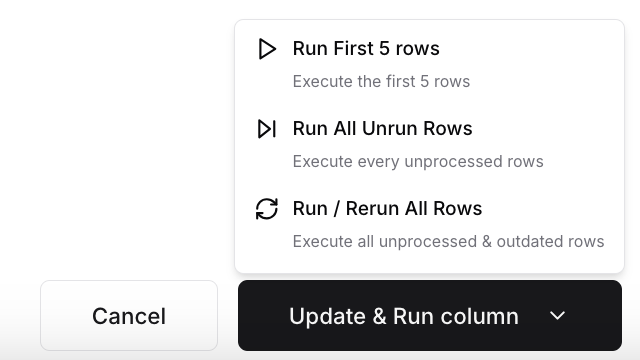
Run/rerun options for executing a column
Bridges Prompt Examples

Sharing Bridges with Consumers

After you create a bridge and finish customizing the consumer view, you’ll need to share it with consumers before they can see it. Consumers can only access bridges that have been shared with them. Once a bridge is shared, they’re automatically subscribed to it, though they can still manage their feed and subscriptions at any time. You can share a bridge with consumers in two ways:
  1. Share a bridge with specific users
  2. Share a bridge with teams

Sharing a bridge with specific users

This can be done using the “Share” option on the bridge page itself, in addition to from the Users management page within Organization settings.
Sharing a bridge with specific users (step 1)
Sharing a bridge with specific users (step 2)

Sharing a bridge with teams

You can also share a bridge with teams (groups of users) to make it easy to share with multiple users at once. To do so, you can utilize the “Share” button on the bridge page (similar to above), or from the “Teams” page within organization Settings.
Sharing a bridge with teams
Only admins can create teams and add or remove users from teams.

Sharing a signal with specific users

Anyone—admin, builder, or consumer—can click the “Send” icon in the top right of a signal card to copy a link to their clipboard. Any user in the Starbridge account can open that link to view the signal, even if the bridge isn’t shared with them. However, they can only see additional bridge results if the bridge has been shared with them.
Send icon on a signal card for sharing a link