

Documentation Index
Fetch the complete documentation index at: https://hc.starbridge.ai/llms.txt
Use this file to discover all available pages before exploring further.
Note: if you’re looking for how to push data from Starbridge to Slack, check out our article on Zapier Integration.
Overview
The Ask Starbridge’s integration for Slack brings real time buyer intelligence directly into Slack, so your team can research accounts, prepare for outreach, and get product guidance without leaving the conversation. Instead of switching between tabs, help center articles, and research tools, you can ask a question in Slack directly and receive structured, context-aware responses in seconds. This document provides technical details about the installation process, the Slack integration’s permissions, scope, and data access policies. Use Ask Starbridge in Slack to:- Research any buyer (ex: district, university, or government agency)
- Identify key stakeholders and contacts
- Understand organization priorities and initiatives
- Get account background before a meeting or outreach
- Ask product questions
- Learn workflows and best practices in the product
- Direct message the Ask Starbridge Slack integration (@Starbridge) to research an account or ask a product question.
- Mention @Starbridge in a channel to bring shared buyer context into team discussions.
Install Ask Starbridge in Slack (admins only)
To add Starbridge to your Slack workspace:Open the Slack installation flow
Go to Settings → Integrations, or click the Slack installation button in the left navigation.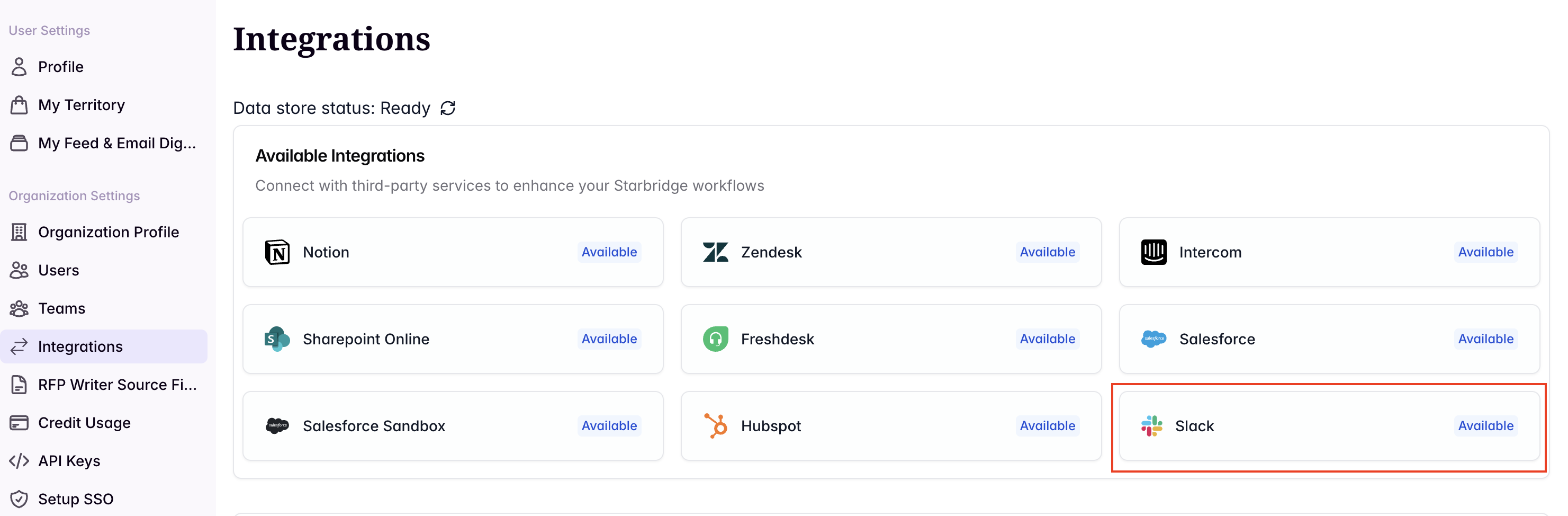
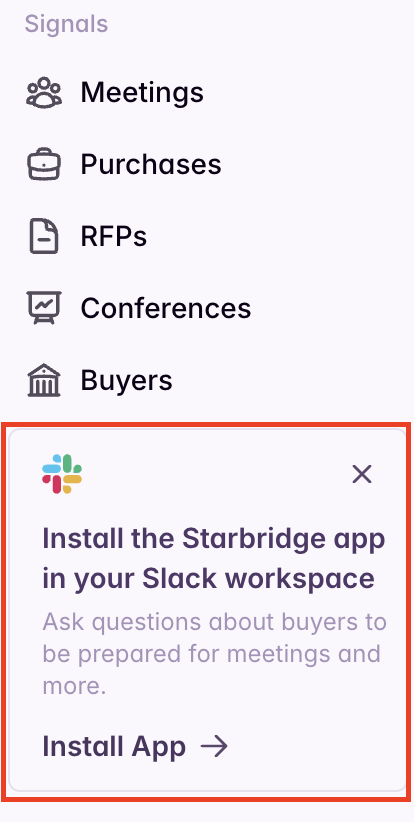
Approve Slack permissions
Click Allow to review app permissions and enable Starbridge in Slack.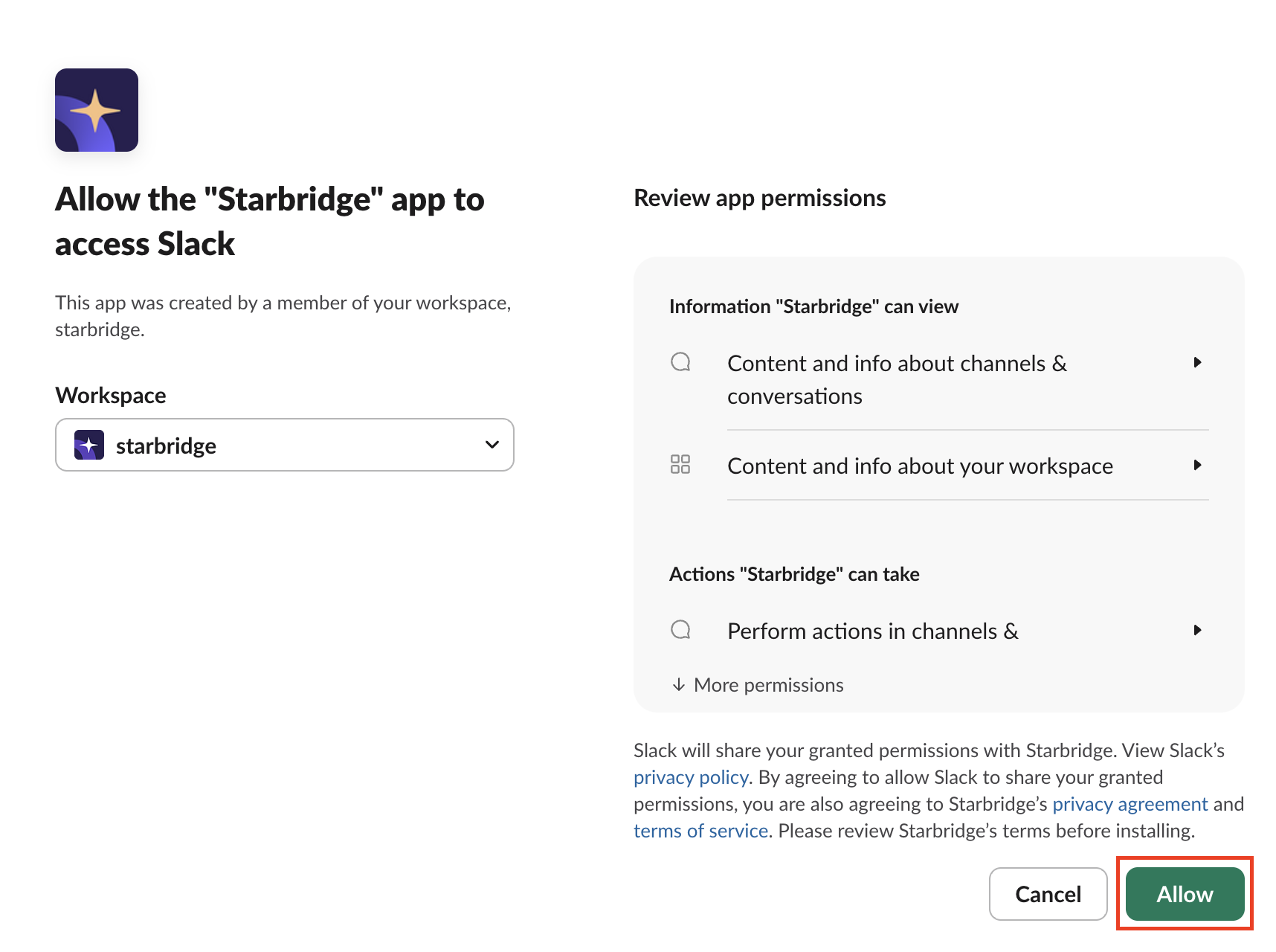
This only needs to be completed once per Slack workspace. Note that the Slack integration can only be installed in one Slack workplace per organization - please choose to install it in the Workspace it will be used in.
Privacy & data access philosophy
The Ask Starbridge integration for Slack is scoped to the bare minimum needed for the chatbot to:- Send messages in response to user requests
- Listen for user invocations so it can respond
- Utilize earlier conversation exchanges to respond intelligently
- Identify the Slack user to ensure they have a Starbridge account
The Slack integration does not store direct message conversation history, and cannot access Slack messages outside of channels or private messages it’s been added to.
Bot token scopes
The Ask Starbridge integration for Slack requests the following OAuth bot token scopes. Each scope is limited to its specific purpose.- Send messages
- Listen for user interactions
- Read conversation context
- Identify the user
chat:write
- Allows the bot to send messages in channels, threads, and direct messages
- Used to deliver responses to user queries
assistant:write
- Enables the bot to send messages using Slack AI Assistant capabilities
- Provides enhanced formatting and interaction patterns
What the bot cannot do
- Cannot access channels it hasn’t been invited to - The bot only sees messages in channels or conversations where it’s explicitly added
- Cannot read message history - The bot does not store or access historical conversations
- Cannot monitor workspace activity - The bot only responds to direct invocations via @mentions or direct messages
- Cannot access private information - The bot has no access to private channels, DMs between other users, or workspace metadata beyond what’s necessary for user identification
Security & compliance
- Minimal Scope - We request only the permissions necessary for core functionality
- No Data Storage - Direct message conversation history is not stored by Starbridge
- User Authentication - We identify whether a user is connected to a Starbridge account in order to deliver personalized functionality and enforce feature-level access controls
💡 Best Practice
After you’ve set up the Slack integration for your Slack workspace, share out a message to your team so they know how to use Ask Starbridge in Slack! Example below:How to add the app
Click “+ Add apps” in SlackHow to use it
- Search for Starbridge
- Install the app
The Starbridge Slack app works the same way as the “Ask Starbridge” functionality in the Starbridge portal. You can use it to:When available, Starbridge will also include a Sources link at the bottom of its response so you can easily reference where the information is coming from.
- Ask questions about any SLED account
- Prep for meetings quickly
- Surface key account insights while you’re on a call
- Research accounts without leaving Slack
Note: Ask Starbridge for Slack generates answers using AI. The information provided is intended to assist research and workflows, but may contain inaccuracies and should be verified when appropriate.
FAQ
What is your privacy policy & data retention policy for the Ask Starbridge Slack integration?
What is your privacy policy & data retention policy for the Ask Starbridge Slack integration?
We retain customer data to support core application functionality, analytics, and operational monitoring. Persistently stored data may include Slack user IDs, workspace and organization IDs, message content and metadata (such as timestamps, channel IDs, and thread IDs), files or file metadata, OAuth tokens, and email addresses. Customer data is retained indefinitely while the workspace remains connected to the application, unless deletion is requested by the customer.Our app is committed to giving users control over their data and complies with Slack’s requirements for user data deletion.Users may request deletion of their personal data by contacting us directly at support@starbridge.ai.You can read more at our Privacy Policy.