

Happy New Year! We’re excited to announce a major product overhaul today! Here’s what’s new: New, dedicated Sales rep experience in Starbridge:Documentation Index
Fetch the complete documentation index at: https://hc.starbridge.ai/llms.txt
Use this file to discover all available pages before exploring further.
- Reps will now see an enhanced card-based feed and email digest, fully customized with the most relevant information from your bridge.
- We’ve introduced roles and permissions, so you can limit who can see and edit each bridge. This allows your reps to focus on what matters most: acting on great leads and booking meetings.
- You can now filter which items in your bridge are shown to reps, so your reps only see your highest scoring signals or those that meet your desired criteria.
- We’ve launched a new chat-based interface that delivers on-demand account insights and answers to your questions instantly, whether you’re researching for a meeting or getting an answer last minute while on a call with a prospect.
- Ask Starbridge is also available to install directly into your Slack instance, so reps can get answers from where they’re already working.
Overview
Here is an overview of everything that’s changing:- The User role is being split into Builder and Consumer roles.
- Builders are the Starbridge experts that build bridges to enrich and score accounts, find and enrich contacts, and surface key signals to fuel their sales teams.
- Consumers are the BDRs, AEs, and other GTM team members that consume signals from bridges, research accounts, and write RFPs.
- Builders now have much more control over how signals appear in your sales team’s feeds.
- You can now filter what signals appear in your Starbridge feed and email digest. For example: if you have a signal score, filter out all results below a certain minimum threshold from appearing in your team’s feed! Before, all signals from a bridge would appear in the feed and email digest.
- You can now customize what fields from each bridge appear in the feed and email digest. For example: if you have a signal score calculated from six intermediate AI Analyses, hide the six intermediate analyses and display only the final score! Before, signals always appeared in the feed and email digest with a default set of fields.
- Admins can now organize users into Teams, and builders can now subscribe Teams to bridges. No need to add or remove users one-by-one from each bridge - add or remove the whole Team!
- Ask Starbridge: Users can research accounts in seconds via interactive chat.
- Ask Starbridge gives you instant access to Starbridge’s buyer intelligence through a chat interface, helping you quickly surface relevant buyer insights without the time and effort of clicking through Starbridge or performing manual research. https://www.loom.com/share/a853401071544a3598e44009432595c9
Best Practice for Adjusting Your Starbridge Environment
See here for our recommendations on the best way to set up your team in Starbridge.Why We Built This
We’ve consistently heard that users love going deep in the platform - reviewing bridge signals, researching & scoring accounts, and writing RFPs - but struggle to translate those insights into a format their sales teams can quickly digest and act on. To address this, we’ve re-organized Starbridge to address each user type and their use case: building bridges, and consuming bridges!- By introducing feed customization, builders can now filter their reps and BDRs’ feeds to only contain the signals that meet their team’s minimum standard of relevance, prioritize showing only the most actionable fields in their feed, and hide the noisy internal workings of the bridge. Less noise, more action.
- By introducing Ask Starbridge, consumers can now follow up on warm signals or prepare for upcoming calls by asking questions they want answered about an account or buyer directly in chat, instead of spending time digging through the buyer profile in Starbridge.
A New Bridge Building Experience
Builders can now configure bridges across two specific modes in the Starbridge application.Bridge Modes
Build mode
You can enter Build mode to build your bridge. Add, edit, move, or re-run columns in your bridge, just like before this release.
Consume mode
You can enter the ****new Consume mode to configure and customize how consumers will see signals from the bridge in the bridge, their feed, and their email digest. Click ‘Configure consumer view’ to configure the layout of your bridge in feed and table views, including which columns are visible and in what order they appear. Then, you may configure the filters and sort of your bridge: what filters to apply to signals to determine whether they appear in the table and feed, and how they ought to be sorted.
How to Share Bridges
We have reorganized the process for sharing bridges, bringing sharing out of the ‘Edit Bridge’ button into its own ‘Share’ button. We’ve also moved the selection of a buyer filter for your team’s feed into ‘Configure consumer view’.Share button
Instead of clicking ‘Edit Notifications’, you now click ‘Share’ to determine who should have access to a bridge. By default, this gives the specified users/teams access to the Bridge View Mode and adds the bridge to their Feed and Email Digest. Users can choose to hide bridge results from their Feed or Email Digest, but the bridge will remain shared with them regardless. They can always later unhide the bridge results or continue to access the Bridge View Mode. You can stop sharing a bridge with users and teams from this same page.
Buyer filter
Once you share a bridge with a user or team, the bridge results will appear in their bridge view, feed, or email digest according to the filters you define in ‘Configure consumer view’ > Filters and sort > Filters. Here you can define whether to show consumers results from all buyers or only buyers in the user’s default buyer list. This will default to only buyers in the user’s default buyer list.
A Simplified Consumer Experience
Your Feed and Email Digest
Consuming your Feed
Here’s what you will find in your Feed:- Centralized Signals: All new signals from your Bridges are now surfaced in My Feed — no more hopping between screens.
- Signals are always sorted from top to bottom by most recently to least recently added to your feed. You might see some signals at the top of your feed that correspond to older events, when there’s been a fresh update or some new information that Starbridge just uncovered. Think of it like your email inbox - you want new emails at the top, even if someone is replying to an old thread. Same principle here with your feed.
- Each signal includes relevant information that your Starbridge builder configured for you to be able to quickly understand and take action on the signal. Tip: Would it be useful for you to have additional information associated with a signal? Ask your Starbridge builder to add it to your feed! For example, if you’re consuming Meeting signals and your next step is typically to pick up the phone and call someone at the account, ask your Starbridge builder to add an AI-generated cold call script to the signal cards that appear in in your feed.
- Actionable Cards: Act on each signal by marking it as one of “Actioned”, “Starred”, or “Not interested”. Click on each signal card to see more information.
- Origin Tags: Every lead card shows its source Bridge, so you always know where it came from — even if it appears in multiple Bridges.
- Feed Filters: Filter your home feed by:
- Status: All, Needs action, Actioned, Starred, Not interested
- Added time: When the signal was added to your feed
- Signal type: Meeting, RFP, Purchase, or Custom Web Signal
- Bridge: The bridges that are continuously monitoring for new signals Each time you visit the feed, you will see “You have X new signals since your last visit.”
Customizing your Feed
Keep in mind that the signals you see in your feed and your email digest will be the same, so customizing your Feed will also customize your email digest. Hiding and Showing Signals from Bridges When might you want to hide signals from a bridge?- When the bridge’s signals are too noisy and clutter your feed or daily/weekly email digest.
- When the bridge’s signals are useful to review periodically from the Bridge view, not every day or every week in your Feed or email digest. Navigate to My Feed, then click ‘Configure my feed’, and check the bridge signals you want to see or hide in your feed and email digest. Make sure to click Save in the bottom right.
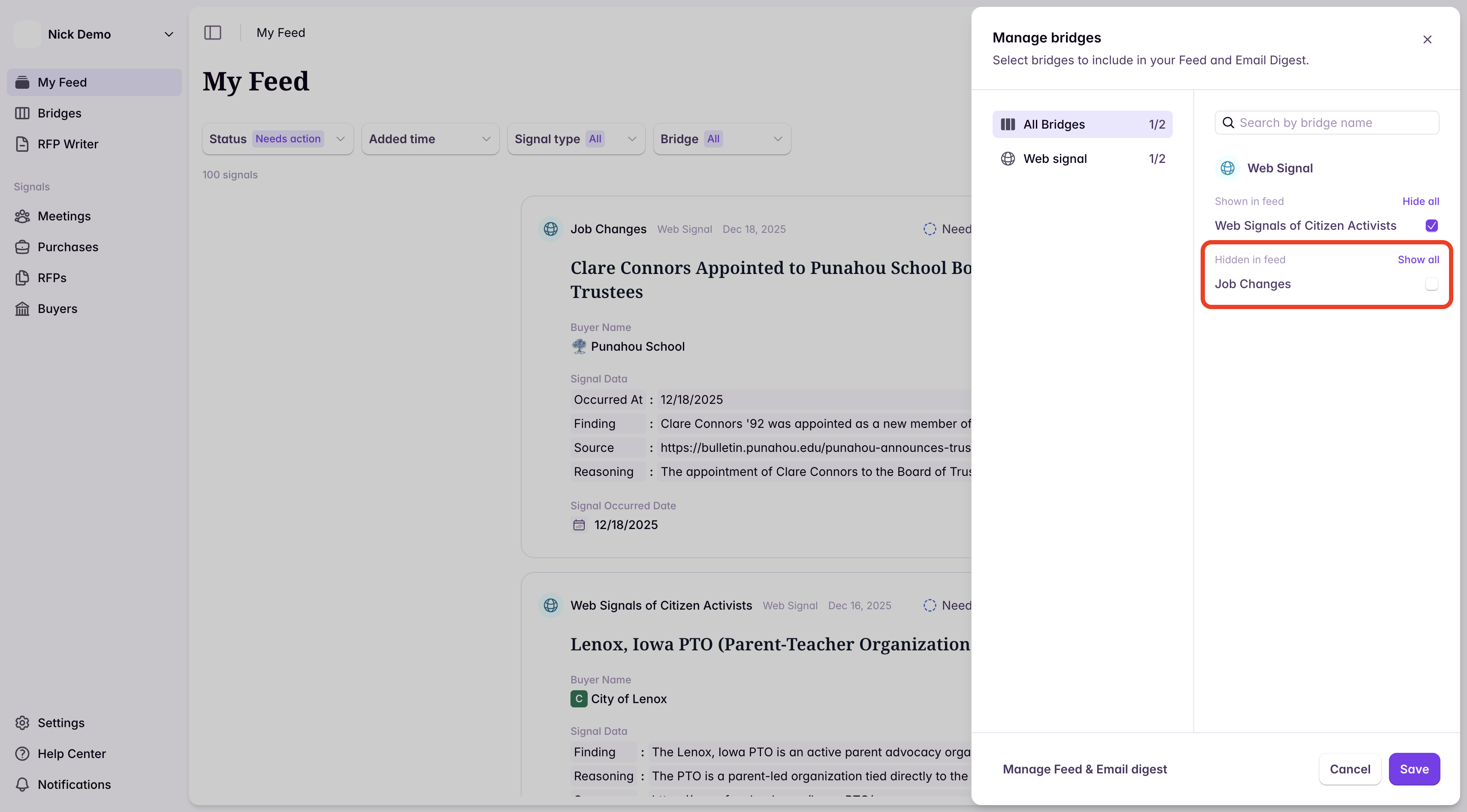
If some bridges consistently generate too much noise and you opt to hide them from your feed, your Starbridge builder might appreciate it if you let them know - it’s useful feedback!
Ask Starbridge chat: your account research shortcut
We’ve enhanced our existing buyer chat feature by building Ask Starbridge. Ask Starbridge gives you instant access to Starbridge’s buyer intelligence through a standalone chat interface, helping you quickly surface relevant buyer insights without the time and effort of manual research. Ask Starbridge is available within the Starbridge platform (accessible via the sidebar): Ask Starbridge in UI And, Ask Starbridge can be added as an integration within Slack:
  Ask Starbridge in Slack
Chat Capabilities
Ask Starbridge answers questions about buyers by leveraging Starbridge’s proprietary data (meetings, RFPs, purchases, etc.) in addition to conducting custom web searches to answer your query. Ask Starbridge has context on your business, so responses are tailored to your organization. All responses will include source links so you can research further if needed. Previous chats are also saved so you can go back and reference them. Suggested topics:- Identifying if the buyer is using any of your competitors
- Understanding key priorities or projects that may be relevant to your business
- Researching the best procurement path and/or sole source limit for a buyer
- Finding a buyer’s key contacts
- Researching what tools/products a buyer uses Note that you must specify a specific buyer in your query. At this time, non-buyer questions (ex: “Summarize this meeting for me”) are not supported.
Slack Integration
Read more here!
That wraps up our release note! We have updated the Help Center to reflect this new release, so check out the Help Center articles if you have any questions. As always, if you can’t find what you’re looking for, feel free to send us a message in Slack or at support@starbridge.ai!Released 2026-01-08.