Documentation Index
Fetch the complete documentation index at: https://hc.starbridge.ai/llms.txt
Use this file to discover all available pages before exploring further.
Introduction
The week of May 26, we’re launching an evolution of the Starbridge platform. At the heart of this release is Bridges—now the central, unifying object of the Starbridge product experience. Bridges are how you track, manage, and take action on key signals. Whether it’s an RFP, a meeting insight, a purchase trend, or a curated buyer list, every meaningful workflow now begins and ends with a Bridge.Overview
Here is an overview of everything that’s changing:- Bridges now contain all the functionality previously available in Saved Searches. You can get email notifications about new Leads in your Feed and then use your Bridge to get the context you need to take actions and track your progress.
- Take action directly from My Feed: See all your Leads in one place and mark them as actioned directly from My Feed.
- View only Leads that are relevant to you with Default Buyer Lists: Set a default Buyer List based on your territory or customer base and only see relevant Leads and Signals across Starbridge by default, including in Bridges and when exploring Signals. You can also subscribe to only the Leads from your territory as part of a larger Bridge.
Why We Did This
We heard consistently from our users that they love being notified about new signals but wanted to use Bridges to get the context they needed to take action on these leads. They found the previous experience disconnected and we agreed. To address this, we combined the best parts of both experiences into the new, more powerful and unified Bridges experience. We also heard from users that it was difficult to manage Starbridge with many reps and BDRs in the platform, each with their own territory. Many Saved Searches and Bridges were hard to maintain and keep up to date and users often saw things that weren’t relevant to them. By introducing default Buyer Lists, users now only see signals relevant to their territory or customer list across the application. As a result, admins can maintain fewer total Bridges that can be shared by many reps to ensure that all leads are actioned.Introducing the New Bridges Experience
Bridges are now the primary unit of execution in the Starbridge application. You can bundle your search criteria, buyer lists, and signal filters into a living, trackable workflow. You can subscribe to Bridges to receive updates. You can mark progress and denote status.Viewing a Bridge: Card vs. Table View
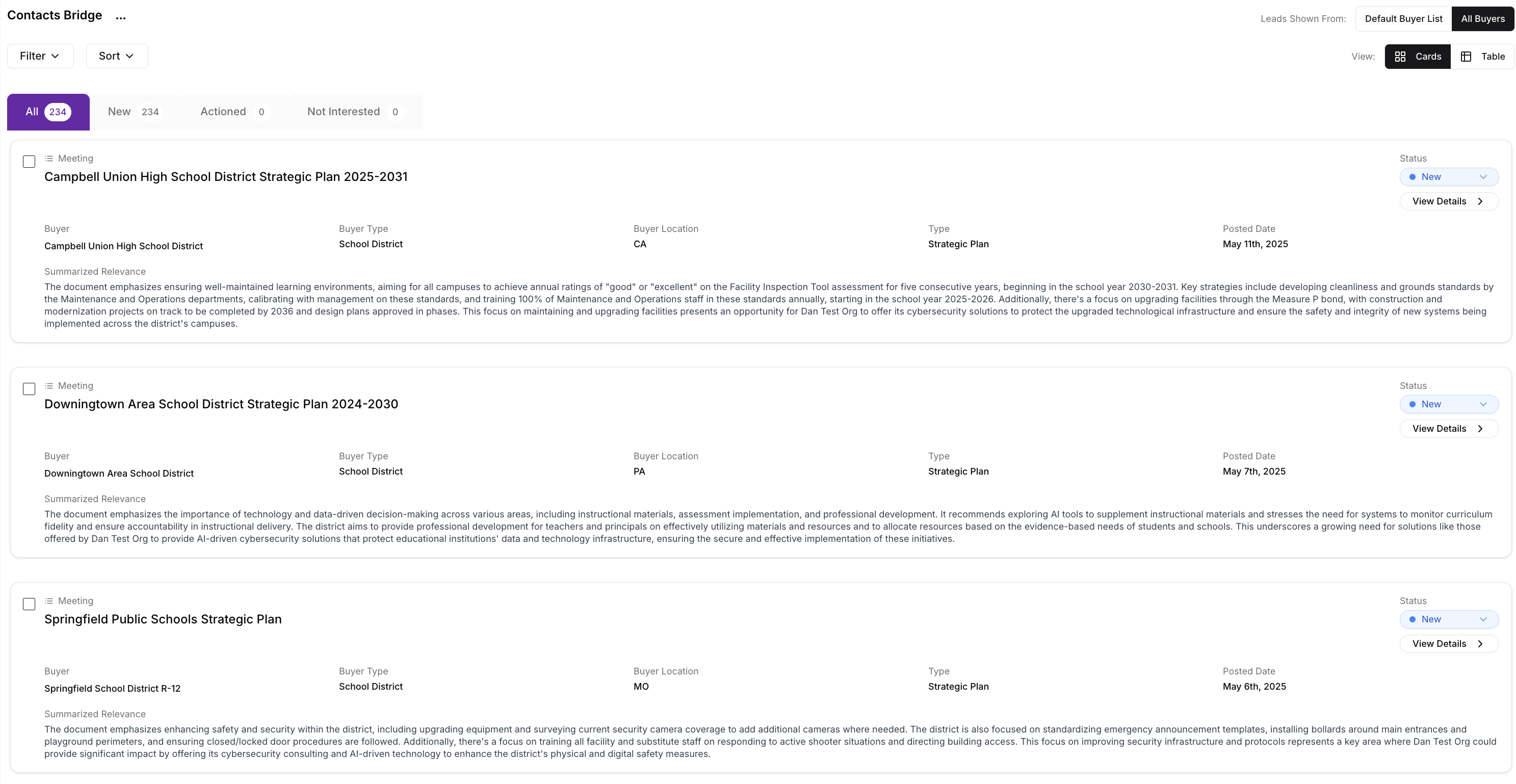
You can now choose how to view leads within any Bridge—Card View or Table View—depending on your workflow.- Card View is ideal for reviewing leads one-by-one with rich context. Great for end users evaluating RFPs, meetings, or purchases.
- Table View is optimized for scanning, sorting, and comparing leads across multiple dimensions—perfect for high-volume analysis.

Default Buyer Lists vs. All Buyers Filter in Bridges
When viewing an individual Bridge, you can toggle between “Default Buyer List” and “All Buyers”. The “Default Buyer List” setting will only show leads that are in your territory.
Setting your default Buyer List
The majority of End Users in Starbridge are overseeing a specific line of business or territory. Users now start with a personalized Buyer List to automatically filter the data across Bridges, searches, and Feeds. No more reapplying territory filters every time. If you are an Admin or a Configurator for your company, then your Buyer List will be the TAM for your team or a group you are overseeing. In the example below, John would create a TAM Buyer List, for the entire territory his team manages. Lydia, Rob, and Cecily would have their preset buyer lists be specific to the territories they oversee, therefore allowing them to only see the leads in their territory based on the searches John has created.
| Name | Title | Preset/Default Buyer List |
|---|---|---|
| John | Sales Director, Starbridge Admin | All School Districts in CA, NY, TX |
| Lydia | BDR | All School Districts in CA |
| Rob | BDR | All School Districts in NY |
| Cecily | BDR | All School Districts in TX |
Subscribing to a Bridge
On the Bridge home page, you can view all of the Bridges you are subscribed to, allowing you to focus on the Bridges that are most impactful for you. These will be the Bridges that populate your Feed. If you want to subscribe to a Bridge, you can select “edit” and then “Configure Feed Subscription” to add yourself to Bridge-level notifications.

A Updated Feed Experience
Your Feed is your personalized home base for new and relevant signals across your active Bridges. It centralizes all new leads that require your attention—streamlining your workflow and helping you stay on top of what matters most. Here’s what’s new:- Centralized Homebase: All new leads from your subscribed Bridges now surface in My Feed — no more hopping between screens
- Actionable Cards: Redesigned card layout matches Bridges, with clear “Actioned” and “Not Interested” buttons that sync instantly back to each Bridge.
- Origin Tags: Every lead card shows its source Bridge, so you always know where it came from — even if it appears in multiple Bridge.
Setting your Email Digest
You can now control how often you receive notifications via email digests, removing the need to set up notifications individually for every search.
New Bridges Creation Experience
Entry Point 1: Creating a Bridge through Search
This is our recommended way of creating a Bridge. Searches are designed for discovery — to help you find the right signals that support a specific action or intent. Since every effective search leads to action, we’ve removed the ability to save searches directly. Instead, you can now turn any refined search into a Bridge—a more powerful, action-oriented format. From the RFPs, Meetings, and Purchases pages, once you’ve refined your keyword search, applied the right filters, and feel confident in the signals you’ve surfaced—you’re ready to take action. That’s where the Create Bridge button comes in. Clicking Create Bridge allows you to instantly bundle your entire search configuration—including:- Your keyword query
- Any applied filters (e.g., date range, meeting type)
- Your Buyer List selected (automatically applied by default) This workflow kickstarts the Create New Bridge form, with all your selected criteria pre-populated so you can go straight into naming the Bridge, assigning ownership, and configuring notifications. It’s the fastest way to turn exploratory research into a repeatable, trackable, and shareable workflow.
 Formerly, users would receive notifications based on a search they were subscribed to. Now, users will subscribe to notifications for Bridges. Why the change? We believe notifications should automatically be tied to the actions you anticipate to take. Whether it is research/enrichment based, part of an active campaign, or part of scoring, a notification is an indication of a new lead or signal that can be evaluated and acted on immediately.
  When creating a Bridge, you will automatically be subscribed to receive notifications for that Bridge. The notifications you will receive will be daily or weekly based on the selection in your User Profile. If you are the Starbridge Admin, you can also select which individuals or team members should be subscribed or receiving notifications for each Bridge you create.
Updates to Search
Searches are designed for discovery—to help you find the right signals that support a specific action or intent. Since every effective search leads to action, we’ve removed the ability to save searches directly. Instead, you can now turn any refined search into a Bridge—a more powerful, action-oriented format. Additionally, your Buyer List is now automatically applied to every search, so results are tailored to your territory by default.
Save & Name Keyword Queries
You can now save and name keyword queries to quickly reuse common search terms and phrases. This makes it easier to manage frequently used queries across your workflow. Keep in mind: this is not the same as saving a full search—only the keywords are stored, not any filters like sort criteria, date range, or Buyer List settings.Entry Point 2: Through the Bridge Home Page
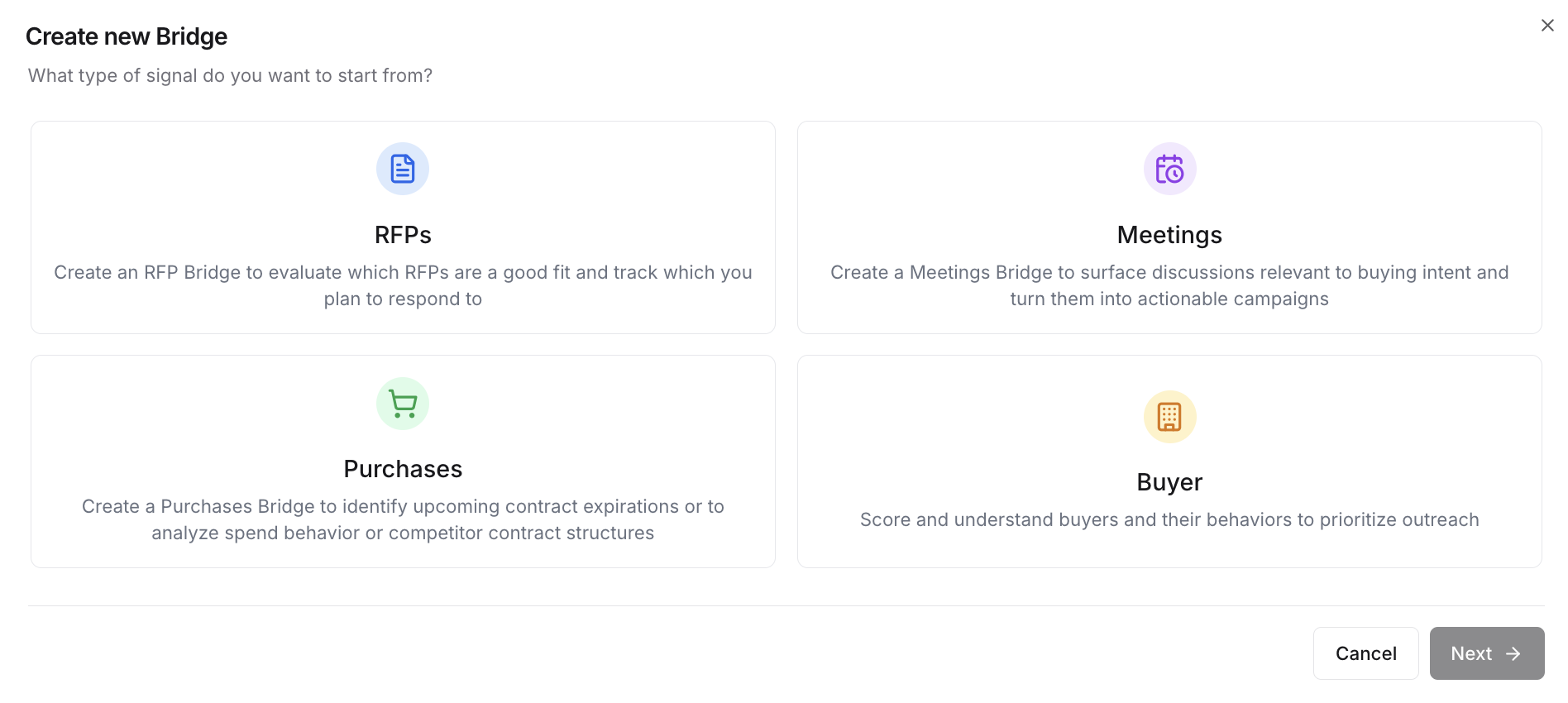
We’ve introduced a brand new Bridge Creation Menu that makes it easier than ever to start creating a Bridge. When clicking “Create Bridge” from the Bridges landing page, you’ll now be prompted to choose from a list of Bridge types based on your use case or signal source:- RFP Bridge – Create a Bridge to monitor and act on relevant RFPs
- Meetings Bridge – Track key conversations and buying intent from meeting notes
- Purchases Bridge – Identify trends in spend behavior and expiring contracts
- Buyer Bridge – Build static lists of Buyers (used for targeting or segmenting) Each selection dynamically adjusts the filters available to you so you’re only configuring the options relevant to that type of signal. Once your filters are applied, you can:
- Name your Bridge
- Confirm your scope (Default Buyer List or All Buyers)
- Configure who receives Feed and Digest notifications
- *Only available for RFP, Meetings, and Purchases Bridges.
- Finalize and launch your Bridge into your organization’s shared view