

Once you have set up your main Bridges, you can add users, select their role, add teams, and subscribe them to the right Bridges.Documentation Index
Fetch the complete documentation index at: https://hc.starbridge.ai/llms.txt
Use this file to discover all available pages before exploring further.
User roles
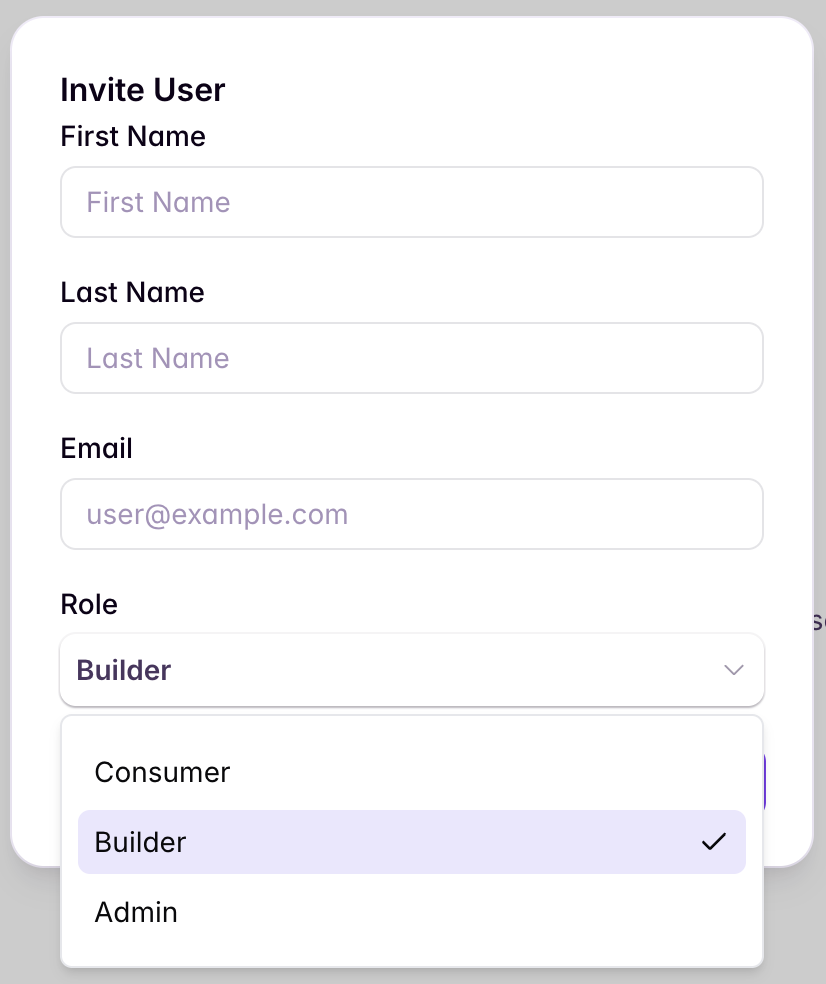
There are 3 user roles in Starbridge:Consumer
Consumers can view signals from Bridges shared with them, action signals (e.g., “Needs action” → “Actioned”), receive email digests, export Bridges as CSVs, and explore signals for research. They also have full access to RFP actions.
Builder
Builders can do everything a Consumer can, plus create/edit Bridges, configure the consumer Bridge view (filters, sorts, and column visibility), and define buyer lists for Bridges. Builders have access to all Bridges within an organization.
Admin
Admins can do everything a Builder can, plus manage organization settings: edit the organization profile, add/remove users, create/manage teams, configure bridge credit limits, set up integrations, monitor credit usage, access API keys, set up SSO, and edit homefeed configuration on behalf of users.
Special note for Admins: As of January 6, we split the role of User into Builder and Consumer. (The Admin role remains unchanged.)
- Builders are Starbridge power users who build Bridges that surface the best signals for sales teams to act on.
- Consumers are sales team members who consume signals via their Feed or Email Digest, and conduct account research via Ask Starbridge, Bridges, and searches.
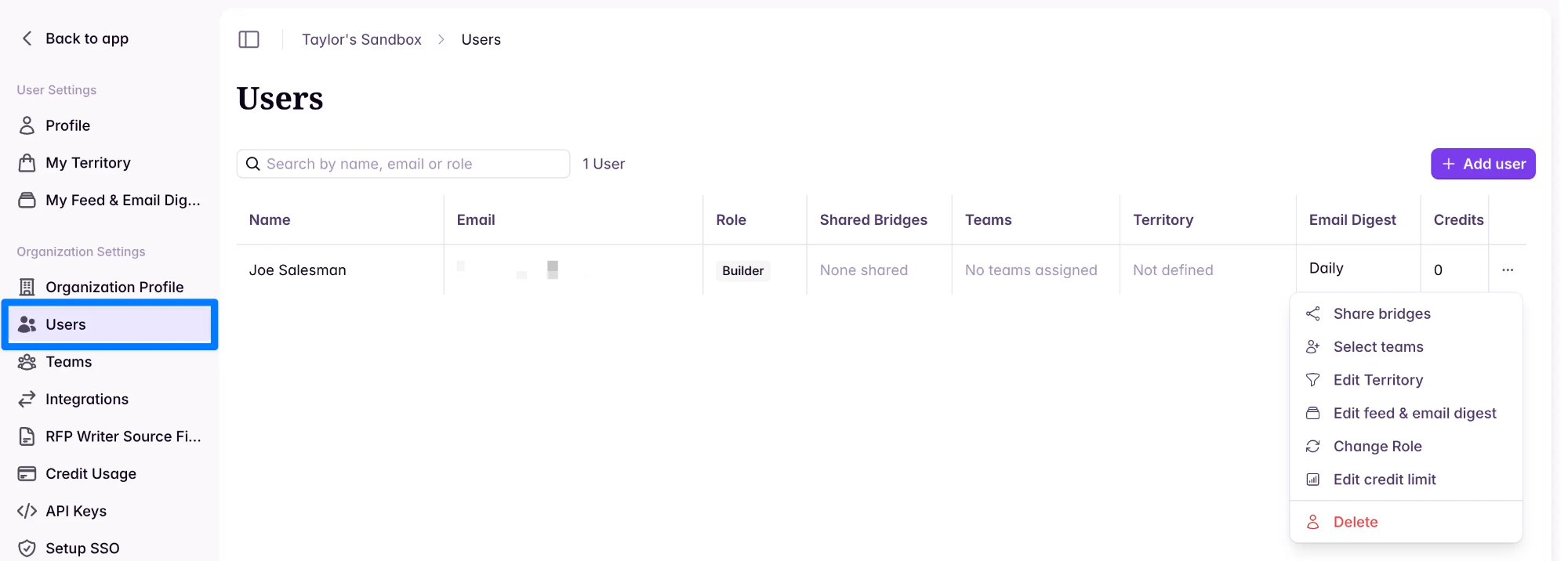
Add users
Set territories by rep
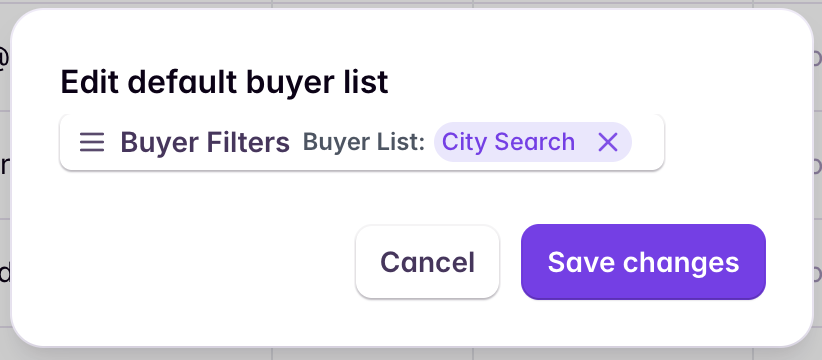
If you need to set up initial buyer lists for Bridges, start here: Setup a Buyer List Once your Bridge’s buyer lists are created, assign individual territories to reps. Each rep gets a personalized territory that filters Bridges, searches, and feeds by default—right from the start.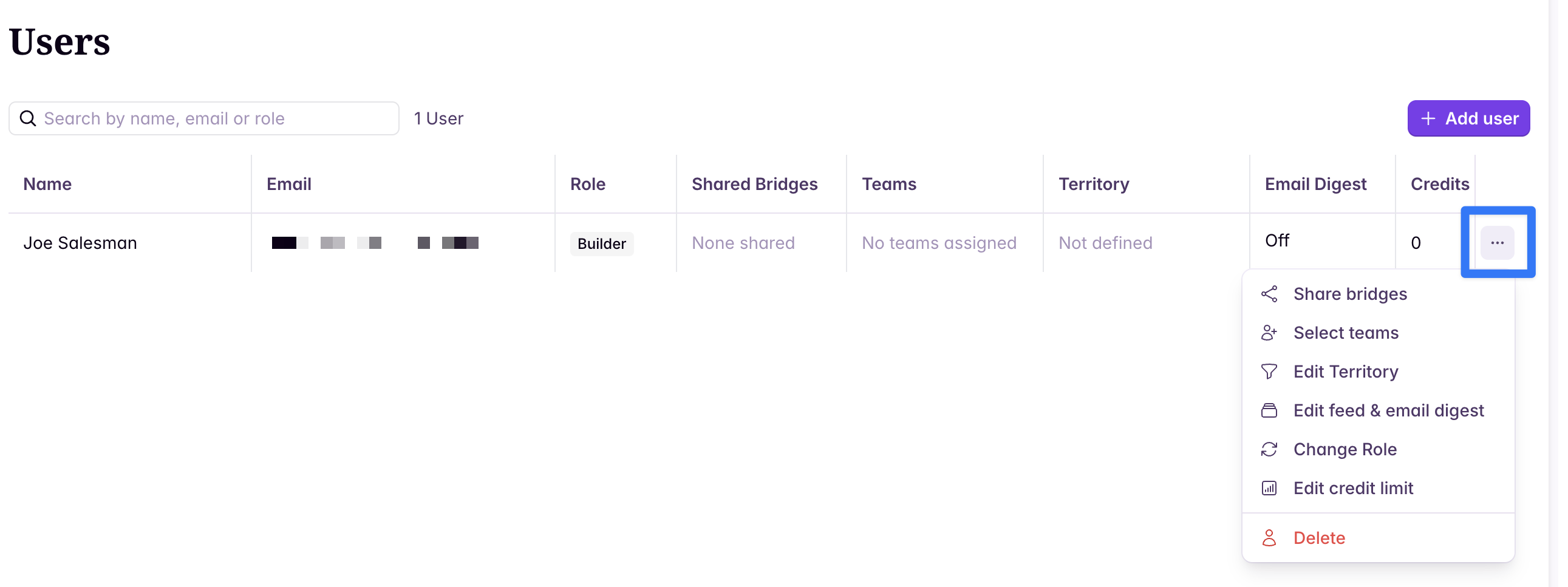
Teams
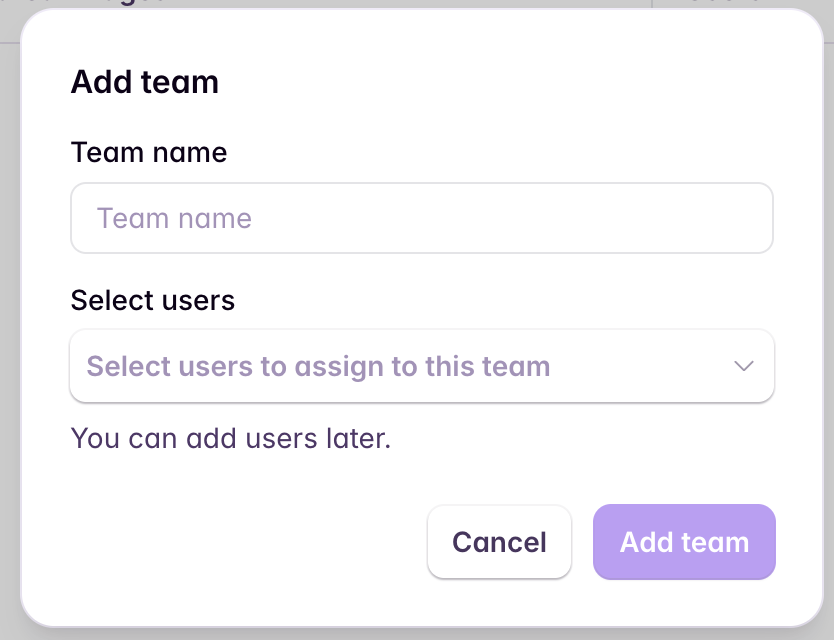
As an admin, you can add users to teams. Admins and builders can share Bridges with one or more teams. Sharing a Bridge with a team automatically grants all team users access to the Bridge.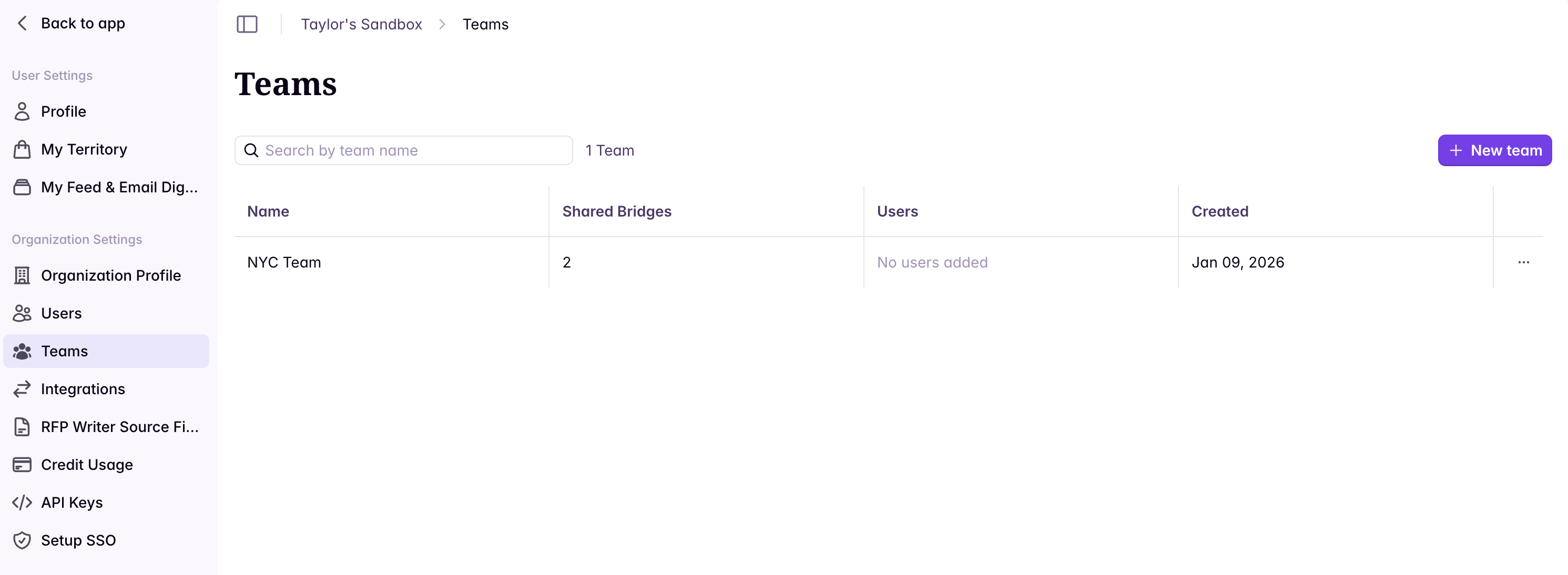
Edit homefeed configuration on behalf of users
Admins can view which bridges a user is subscribed to and adjust their homefeed configuration on their behalf. This is useful when you need to ensure that a user’s feed is set up correctly — for example, subscribing them to the right bridges or hiding noisy ones they don’t need.Edit a user's feed configuration
Click the ⋯ menu next to a user → Configure feed and digest. You can see which bridges the user is currently subscribed to and toggle bridges on or off. You can also control whether the user receives an email digest of their feed and, if so, only what cadence (daily or weeklY).